Showing posts with label internet. Show all posts

Tuesday, September 11, 2012

MOZILLA FIREFOX 14 WILL NOT UPDATE TO FIREFOX 15 IN WINDOWS 7, won't, can't, cannot

MOZILLA FIREFOX 14 WILL NOT UPDATE TO FIREFOX 15 IN WINDOWS 7

Firefox programmers are just as useless as those at Microsoft Internet Explorer. They drink coffee all day and then go home to play with their hardware.

They are paid to do a job then do something else, wasting their work hours away. You would not believe that programmers must be the most absent minded people in the world. They concentrate on putting useless complex things into software that users just will not use, but they forget to cover the basics.

There is a reason why Firefox 14 will not update to Firefox 15. Firefox 14 is installed in a Mozilla Firefox folder in the C: drive Programs Files folder in Windows 7 64bit. Oddly, Firefox 15 is installed in C:\users\name\AppData\local\Mozilla folder in Windows 7 32bit and in the 64bit. You are given no option to change it.

To see the AppData folder go to the "name" folder from "Users" in Explorer. Click "Organize". Click "Folder and search options". Click the "View" tab. Then click the little circle to the left of "Show hidden files, folders and drives".

You will need to access this folder later.
MOZILLA FIREFOX 14 WILL NOT UPDATE TO FIREFOX 15 IN WINDOWS 7
UPGRADING TO MOZILLA FIREFOX 15

Forget about Firefox 14 in the program folder for the moment. Download a fresh copy of Mozilla Firefox 15 and install it. Mozilla will just leave the old Firefox 14 where it is so you can drag out a fresh shortcut link from the exe file onto your desktop and run both versions. Aren't Firefox programmers clever. Don't tell them - they haven't noticed it yet!

Run Firefox 15 from the start menu or from the new link it "hopefully' put on your desktop. From the word GO you will get a warning band across the top of the page in the browser when you encounter a website with background sound. You will probably get a message telling you that you need to install Quicktime. After you install it you will get the warning again and again. You may get something else - a warning telling you that Quicktime has malfunctioned. Every time you go to a website with sound you will get the same warning. With no sound from Firefox 15 you go to Google, search and find this blog.

It is not a Quicktime problem!
MOZILLA FIREFOX 14 WILL NOT UPDATE TO FIREFOX 15 IN WINDOWS 7

SOLUTION

You can go to "Add-ons" and not see Windows Media Player there. Download Firefox WMP Plugin from here. You will probably still not get any sound.

Open this folder: C:\Program Files\Mozilla Firefox
(the old Firefox 14 folder)
In another window open this folder:
C:\Users\name\AppData\Local\Mozilla Firefox.
Be careful because it may be in a sub,sub folder like,

C:\Users\name\AppData\Local\Mozilla\Firefox.

Copy the "Plugins" folder from Firefox 14 to the folder of Firefox 15.

THE IDIOTS HAVE NOT PROVIDED A PLUGINS FOLDER IN FIREFOX 15. HOW COULD THEY POSSIBLE FORGET???
MOZILLA FIREFOX 14 WILL NOT UPDATE TO FIREFOX 15 IN WINDOWS 7
You will now have sound in Firefox 15. If you have already uninstalled Firefox 14 you can get the files in the Plugins folder from here.

Friday, August 17, 2012

Make Your Own Shortcut Manager, Making, Icons, Folders, Program, exe files, Software

MAKE YOUR OWN SHORTCUT MANAGER


Users can make their own shortcut manager. You just need to make a link in the taskbar to a folder with links in it. Create a folder in the John Smith folder called LINKS. Right click on the Taskbar. Cursor over Toolbars. Then click New Toolbar and browse to the new LINKS folder and choose it.

To make individual shortcuts more visible on the taskbar just drag new shortcuts from the Desktop to the now visible LINKS (the area under the three horizontal dashed lines on the Taskbar).

1.
Change the icons to ones you like.

Right click on an icon.
Click Properties.
Click Change Icon.
Select a new icon image from the window that opens.
Click OK, Apply, then OK.

2.
In the image shown above, the first five icons are folders.
Change folder icons by right clicking one.
Left click Properties.
Choose the Customize tab.
Click the Change Icon button.
Select a new icon image from the window that opens.
Click OK, Apply, then OK.


If this doesn't work click on Explorer.
Select the LINKS folder.
Then do the same as in instructions 2 above for the appropriate folder you see there.
Close and open the folder icons in the taskbar a few times then the icons pictures will eventually change.


Remember the taskbar is visible all the time, even when you have browsers and writing programs open, so accessing shortcuts on the taskbar is easy.

If you want to order the shortcuts in your own way, just rename them with 1- in front of the name, then 2-, 3- and so on. You will find it easier to click and drag the shortcuts to the order you want on the Taskbar. They will stay where you put them. Shortcuts in folders will have to be renamed with numbers because of Microsoft's silly fixed alphabetical sorting system.

If you want you can create more folders on the Taskbar in the John Smith/LINKS/ folder.

Use names for the folders that suite you like, Accessories, Files, Creative, Media, Internet and/or Web. Just click a folder icon on the Taskbar and the folder opens. Drag shortcuts to the open folder, putting them in each folder according to category.

Oh, I find it better to drag the Taskbar to the right side. This gives you more height to view web pages. Modern screens have too much width. You can learn which icon represents which program by cursoring over the icons - a box with the program or folder name will appear for each icon.

Thursday, July 19, 2012

Google Must Be Prosecuted For Charging Non-US Users of Google Voice

Google Gmail offers a new Internet phone service if you have a Gmail Account. There is one thing about running such a service on the Internet; that is it costs nothing for the company providing the service to run. Users pay a local telephone company for access to the Internet from their homes and on their mobile phones. The connection goes through each country via local telephone companies servicing the internet and phone lines.

There is no charge for US Gmail users and a charge per call for those living in other countries. Though it is a small amount it is discriminatory. The Internet goes all around the world like a net. Access to this net is open to anyone. No country charges its population to access the net to other countries. The European furniture company Ikea has already been accused of cross-subsidization for charging different prices for the same products in different countries. The production and even distribution costs are much the same.

Google's discrimination against non-US citizens must be stopped. Legal action must be pursued. Such charging by Google is illegal unless it also charges US citizens. Please comment on this because this is really annoying and should not happen. Google is an international company not a US company.

Thursday, October 21, 2010

An add-on failed to run

When you see the message "An add-on failed to run on this website" or something similar depending on which version of Internet Explorer you are using go to,

"Tools", "Internet Options", "Security" tab, "Custom level..."

Select "Medium". Click "Reset".

Change the settings to look like this,

Click "OK", then "OK" again.

Close Internet Explorer. Some of the new settings will be reset by IE. Don't worry the ones you need will stay changed.

Restart IE. Enter an About website URL.

This is the main site for the problem.

The site should open without the warning because the Flash on the site should now be working.

Unfortunately, this will not always work for IE8. However, It will always work for IE9 Beta.


Installing Adobe Macromedia Shockwave Player for Mozilla Firefox
Installing Adobe Macromedia Shockwave Player for Internet Explorer
Installing Macromedia Adobe Flash Player for Internet Explorer
Installing Macromedia Adobe Flash Player for Mozilla Firefox
Installing a Program to Run SWF Files
Disabling UAC for a Program

Sunday, October 10, 2010

Your security settings do not allow websites to use ActiveX controls installed on your computer

The Internet Explorer (versions 7 and 8) yellow warning line shows up at the top of some websites with this message:

"Your security settings do not allow websites to use ActiveX controls installed on your computer" or

"An add-on for this website failed to run. Check the security settings in Internet..."

They both mean the same thing: Adobe software will not run.


You can pull your hair out with this one. Try going to the "Security" tab and enabling ActiveX settings. Even with the correct settings the same thing happens.

Hold on. There is an answer. Go to "Tools", "Internet Options". Click the "Advanced" tab. Click the "Reset" button. Then click the "Reset" button that comes up in a small window.


This will...

• Disable toolbars and add-ons

• Delete temporary internet files, webpage history, cookies, web forms information and passwords.

• Reset default web browser settings, search providers and home pages.


Don't worry, Restart IE. Go to "Tools", "Manage Add-ons", and "Enable or Disable Add-ons"

Your add-ons are still there. Enable them.

When you go to sites that need a name and password sign in, you will have to re-enter them. You only have to do it once for each site.


Note. It would be advi
sable to uninstall Adobe Shockwave Player and Adobe Flash Player before you reset IE.

Read these two articles,

Installing Adobe Shockwave Player...

Installing Adobe Flash Player....

Be sure you install Adobe Flash Player before you install Adobe Shockwave Player after the reset of IE. This is important.

Friday, April 16, 2010

How to Get Around (bypass) the Australian Internet Filtering System

The Australian Government is about to introduce a filtering system for Internet web sites. Until now I have stayed out of the debate believing it to be good. But the government has overstepped the mark in banning the site set up by Dr Phillip Nitschke. On the site he allows the download of a book on how to end a life in the most "comfortable" manner possible. The majority of people will never need this book. For those who do, however, the information offered is needed and appreciated. They do have the right to access this material.

There is a way to bypass the obstruction set up by the Federal Government. It is quite straightforward. Being an Australia you have the legal right to surf the Internet from an Internet provider based overseas (note, this is also a way to watch television programs,music and video that is available to citizens of that country). The cost is just a few dollars for the Internet Provider based in Ireland that gives access to the BBC and other British programs. At the current exchange rate it is less than $10 a month.

To get this service go to My Private Network. It shows the cost is £5 a month. When you click the "SIGN UP NOW" it shows £10. You should still be able to get the special offer, however. Sign up with a bankcard or debit card.

You will get an email with the link my-private-network get-started. Remember your login name and password because you will have to contact "Support" to get it sent to you again. Go straight to the Get Started link if you have Vista. Enter your details as shown. That's it. You can change from your existing IP to the overseas one by going to the start menu and clicking "Connect To".

When you surf using the overseas IP note that you will be treated as if you are a British national. That means you have access to a lot of useful things.
. . . . . . . . . . . . . . . .

Tuesday, October 27, 2009

Internet Seer is a Fraud Site That Aims To Get Money From You

This is just to let you know about a rogue site. The site is InternetSeer

http://www.internetseer.com/home/index.xtp

Somehow it stops Google from picking up a web page from your site. I don't know how these people do this, but they do. My web page went from number one in Google to disappearing.

I changed the name of the web page and it appeared again in the listings a month later.

An email is sent to you from InternetSeer:

"Second Error Alert Your Web site is still not responding
URL: http://tysaustralia.com/australianhistoriography.html
Time: Fri Oct 23 08:46:25 EDT 2009
Error Type: 500 Internal Server ErrorSupport-FAQWhy is your Web Site not responding? The error listed above could have been caused by any number of events including connectivity problems in the Internet. Please refer to our Error Codes for additional information on the specific error. This error is not necessarily a problem with your hosting service or Web server. Click here to learn more. "

I have checked my web page regularly and I know that it was responding on 10/23/09.

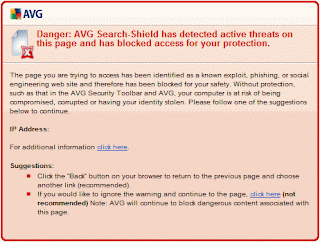
When I click on a link in the email AVG gives the following message:

If my web page was down how did they know it?


. . . . . . . . . . . . .

Wednesday, May 13, 2009

Installing Adobe Macromedia Shockwave Player to Work for Internet Explorer

For a clean installation it will be necessary to uninstall the Macromedia Shockwave Player program on your computer, remove Internet Explorer 8, re-install Shockwave Player, re-install IE8, then check whether shockplayer works.


UNINSTALLING THE EXISTING SHOCKWAVE PLAYER ON YOUR COMPUTER

Close Internet Explorer and all other programs except Audio manager and Color for screen.

Copy this file and run it:

http://tysaustralia.com/Macromedia_Shockwave_Uninstaller.exe

Run a Registry Editor program to remove old registry settings.

Reboot your computer.


UNINSTALLING INTERNET EXPLORER 8 FOR A CLEAN INSTALL

Go to "Control Panel", "Control Panel Home", "uninstall a Program", "View installed updates" in the Tasks pane, then "Windows Explorer 8". Click "Yes" in the "uninstall Updates" window. If you are using Internet Explorer 7 just go to the Installing Internet Explorer 8 paragraph.


INSTALLING MACROMEDIA SHOCKWAVE

Download the file "Shockwave_Installer_Full.exe" by going to this URL:

http://www.download3k.com/DownloadLink1-Macromedia-Shockwave-Player.html

Run and install.


INSTALLING INTERNET EXPLORER 8

Go to this URL and click "Download":

http://www.microsoft.com/windows/internet-explorer/default.aspx

Follow the instruction to install IE8.


CHECKING WHETHER ADOBE MACROMEDIA SHOCKWAVE WORKS

Do not go to,

http://www.adobe.com/shockwave/welcome/

to test your Macromedia Authorware Web Player installation. This test site does not work properly and will show that shockwave is not working when it could be.


Enter this URL into Internet Explorer:

http://www.adobe.com/products/shockwaveplayer/gokart/

A
yellow band will appear at the top of the webpage asking if you want to install Macromedia Authorware Web Player. Click this band and follow the instructions.

When you have completed the Authorware Web Player installation the game will load to show that Adobe Macromedia Shockwave is working.


Installing Adobe Macromedia Shockwave to Work for Mozilla Firefox
Installing Macromedia Adobe FlashMX to Run/Open SWF Files
Installing Macromedia Adobe Flash Player to Work for Internet Explorer
Installing Macromedia Adobe Flash Player to Work for Mozilla Firefox
Installing a Program to Run SWF Files
Disabling UAC for a Program

Monday, May 11, 2009

Installing Adobe Macromedia Flash Player to Work for Internet Explorer

HOW TO SUCCESSFULLY INSTALL ADOBE FLASH PLAYER SO IT WORKS FOR INTERNET EXPLORER

It will be necessary to reset Internet Explorer, then uninstall, and re-install Adobe Flash Player. All old registry settings must be removed.


RESETTING INTERNET EXPLORER


Go to "Tools" in Internet Explorer. Click "Internet Options". Click the "Advanced" tab"
Click "reset", then "OK".Turn off Internet Explorer
Turn IE on again you will see your toolbars will be disabled. Don't worry; see Re-enable Toolbars, below.

Go to "Tools" Click "Internet Options". Click "Security" tab. Move the security level lever down to medium. Click " Custom Level". Reset to "Medium"; then click "reset"
Find the section "ActiveX controls and plug-ins".
Set "Download Signed ActiveX Controls" to "Prompt".
Set "Run ActiveX Controls And Plug-ins" to "Enable".

Click "OK"; then "Apply"; then "OK".


UNINSTALLING FLASH PLAYER


Download the Flash Player file "uninstall_flash_player.exe" by entering this URL address into IE address line:

http://download.macromedia.com/pub/flashplayer/current/uninstall_flash_player.exe

Save the file to a location of your choosing, probably the "Download" folder.
Close Internet Explorer and all other programs except Audio manager and Color for screen.
Double Click the file to run it. Restart the computer.
When the computer has booted run a Registry Editor program to remove old registry settings.
Restart the computer.


INSTALLING FLASH PLAYER

Download the Flash Player file "Install_Flash_Player_10_ActiveX.zip" by entering this URL address into IE address line:

http://www.adobe.com/support/flashplayer/ts/documents/tn_19166/Install_Flash_Player_10_ActiveX.zip


Save the file to a location of your choosing, probably the "Download" folder.
Close Internet Explorer and all other programs except Audio manager and "color" for screen.
Go to the "Install_Flash_Player_10_ActiveX.zip" file which will be in a subfolder called "Install_Flash_Player_10_ActiveX.zip" in the "Download" folder.
Double click the file "Install_Flash_Player_10_ActiveX.zip" to install.

Restart the computer.

Check the installation by entering "http://dagobah.biz/flash/dancing_cat.swf" into the Internet Explorer address line and press "Enter".

You should see a dancing cat.


PROBLEMS WITH ADOBE FLASH PLAYER

SWF files in folders on your computer cannot be opened with Adobe Flash Player even if you done a clean Adobe Flash install.

If you left click on an SWF file an Adobe update window will appear. follow the instructions and download the latest version of Flash Player. You already have the latest version - Adobe Flash Player version 10.0.22.87.

To use another program to open SWF file go to either of these two articles:

Installing a Program to Run SWF Files
or
Installing Macromedia Adobe FlashMX to Run/Open SWF Files


DIFFERENCES BETWEEN ADOBE SHOCKWAVE PLAYER AND ADOBE FLASH PLAYER

If you install the latest version of Shockwave it will install in the
C:\Windows\System32\Adobe\Shockwave 11\ Folder.

Click "Start", "Control Panel", "Control Panel Home", then "Uninstall a program". You will see that "Adobe Flash Player 10 ActiveX" and Adobe Shockwave Player 11.5 are both installed.

Adobe Shockwave Player is for 3D games and entertainment, interactive product demonstrations, and online learning applications. Having just Adobe Flash installed is sufficient for most computer users. Install Adobe Shockwave Player if you feel you must.

Open Firefox. In Google search, type "animals swf"and Enter. Press Ctrl+Alt+Delete. Click "Start Task Manager". Look down the list of programs that are running. You will see that "FlashUtil10B,exe" is running. Adobe Shockwave player is not running
.


RE-ENABLE TOOLBARS IN IE STOPPED BY THE RESET

Try going to "Tools", "Manage-add-ons" and enablling them again. If this doesn't work do the following:

Click "Start", "Control Panel", "Control Panel Home", then "Uninstall a program". Select toolbars and uninstall each in turn. Note the names of your toolbars.

Enter each name in Google Search and install them again.

That's it. If you choose not to install one or more toolbars they will still appear on the "View", "Toolbars" list but they will be greyed-out - until you reinstall them.


Installing Adobe Macromedia Shockwave Player to Work for Mozilla Firefox
Installing Adobe Macromedia Shockwave Player to Work for Internet Explorer
Installing Adobe Macromedia FlashMX to Run/Open SWF Files
Installing Adobe Macromedia Flash Player for Mozilla Firefox
Installing a Program to Run SWF Files
Disabling UAC for a Program>


Installing Adobe Macromedia Flash Player to Work in Mozilla Firefox

HOW TO SUCCESSFULLY INSTALL ADOBE FLASH PLAYER SO IT WORKS FOR MOZILLA FIREFOX

It will be necessary to uninstall and re-install Adobe Flash Player before setting up the Mozilla Firefox Flash Player plugin. All old registry settings must be removed.


UNINSTALLING FLASH PLAYER
Download the Flash Player file "uninstall_flash_player.exe" by entering this URL address into IE address
line:

http://download.macromedia.com/pub/flashplayer/current/uninstall_flash_player.exe

Save the file to a location of your choosing, probably
the "Download" folder.
Close Mozilla Firefox and all other programs except Audio manager and Color for screen.
Double Click the file to run it. Restart the computer.
When the computer has booted run a Registry Editor program to remove old registry settings.
Restart the computer.


INSTALLING FLASH PLAYER


Download the Flash Player file "Install_Flash_Player_10_ActiveX.zip" by entering this URL address into IE address line:

http://www.adobe.com/support/flashplayer/ts/documents/tn_19166/Install_Flash_Player_10_ActiveX.zip

Save
the file to a location of your choosing, probably the "Download" folder.
Close Mozilla Firefox and all other programs except Audio manager and "color" for screen.
Go to the "Install_Flash_Player_10_ActiveX.zip" file which will be in a subfolder called "Install_Flash_Player_10_ActiveX.zip" in the "Download" folder.
Double click the file "Install_Flash_Player_10_ActiveX.zip" to install.
Restart the computer.


INSTALLING THE MOZILLA FIREFOX ADOBE FLASH PLAYER PLUGIN


Enter this URL into the address line of Firefox:

http://fpdownload.macromedia.com/get/flashplayer/xpi/current/flashplayer-win.xpi

Sa
ve the "flashplayer-win.xpi" file in the "Downloads" folder as "flashplayer-win.zip"

Note the change from ".xpi" to.zip". Unzip the file. Copy both "flashplayer.xpt" and "NPSWF32.dll" files to "C:\Program Files\Mozilla Firefox\plugins\".

Close Firefox and open it again.

Mozilla Firefox will now show flash in websites.


Check the installation by entering "http://dagobah.biz/flash/dancing_cat.swf" into the Firefox address line and press "Enter".

You should see a dancing cat
.


PROBLEMS WITH ADOBE FLASH PLAYER

SWF files in folders on your computer cannot be opened with Adobe Flash Player even if you have done a clean Adobe Flash install.

If you left click on an SWF file an Adobe update window will appear. follow the instructions and download the latest version of Flash Player. You already have the latest version - Adobe Flash Player version 10.0.22.87.

To use another program to open SWF file go to either of these two articles:
or
Installing Macromedia Adobe FlashMX to Run/Open SWF Files


DIFFERENCES BETWEEN ADOBE SHOCKWAVE PLAYER AND ADOBE FLASH PLAYER

If you install the latest version of Shockwave it will install in the
C:\Windows\System32\Adobe\Shockwave 11\ Folder.

Click "Start", "Control Panel", "Control Panel Home", then "Uninstall a program". You will see that "Adobe Flash Player 10 ActiveX" and Adobe Shockwave Player 11.5 are both installed.

Adobe Shockwave Player is for 3D games and entertainment, interactive product demonstrations, and online learning applications. Having just Adobe Flash installed is sufficient for most computer users. Install Adobe Shockwave Player if you feel you must.

Open Firefox. In Google search, type "animals swf"and Enter. Press Ctrl+Alt+Delete. Click "Start Task Manager". Look down the list of programs that are running. You will see that "FlashUtil10B,exe" is running. Adobe Shockwave player is not running.


MAKING SHOCKWAVE WORK WITH FIREFOX


Macromedia Shockwave will work in Mozlla Firefox if you go to this site,

then download and install the file.


TEST WHETHER SHOCKWAVE WORKS IN FIREFOX

Do not go to,


to test your Macromedia Authorware Web Player installation.
This test site does not work properly and will show that shockwave is not working when it could be.
Enter this URL into Internet Explorer:

A yellow band will appear at the top of the webpage asking if you want to install Macromedia Authorware Web Player. Click this band and follow the instructions.When you have completed the Authorware Web Player installation the game will load to show that Adobe Macromedia Shockwave is working.