Showing posts with label microsoft. Show all posts

Tuesday, September 11, 2012

MOZILLA FIREFOX 14 WILL NOT UPDATE TO FIREFOX 15 IN WINDOWS 7, won't, can't, cannot

MOZILLA FIREFOX 14 WILL NOT UPDATE TO FIREFOX 15 IN WINDOWS 7

Firefox programmers are just as useless as those at Microsoft Internet Explorer. They drink coffee all day and then go home to play with their hardware.

They are paid to do a job then do something else, wasting their work hours away. You would not believe that programmers must be the most absent minded people in the world. They concentrate on putting useless complex things into software that users just will not use, but they forget to cover the basics.

There is a reason why Firefox 14 will not update to Firefox 15. Firefox 14 is installed in a Mozilla Firefox folder in the C: drive Programs Files folder in Windows 7 64bit. Oddly, Firefox 15 is installed in C:\users\name\AppData\local\Mozilla folder in Windows 7 32bit and in the 64bit. You are given no option to change it.

To see the AppData folder go to the "name" folder from "Users" in Explorer. Click "Organize". Click "Folder and search options". Click the "View" tab. Then click the little circle to the left of "Show hidden files, folders and drives".

You will need to access this folder later.
MOZILLA FIREFOX 14 WILL NOT UPDATE TO FIREFOX 15 IN WINDOWS 7
UPGRADING TO MOZILLA FIREFOX 15

Forget about Firefox 14 in the program folder for the moment. Download a fresh copy of Mozilla Firefox 15 and install it. Mozilla will just leave the old Firefox 14 where it is so you can drag out a fresh shortcut link from the exe file onto your desktop and run both versions. Aren't Firefox programmers clever. Don't tell them - they haven't noticed it yet!

Run Firefox 15 from the start menu or from the new link it "hopefully' put on your desktop. From the word GO you will get a warning band across the top of the page in the browser when you encounter a website with background sound. You will probably get a message telling you that you need to install Quicktime. After you install it you will get the warning again and again. You may get something else - a warning telling you that Quicktime has malfunctioned. Every time you go to a website with sound you will get the same warning. With no sound from Firefox 15 you go to Google, search and find this blog.

It is not a Quicktime problem!
MOZILLA FIREFOX 14 WILL NOT UPDATE TO FIREFOX 15 IN WINDOWS 7

SOLUTION

You can go to "Add-ons" and not see Windows Media Player there. Download Firefox WMP Plugin from here. You will probably still not get any sound.

Open this folder: C:\Program Files\Mozilla Firefox
(the old Firefox 14 folder)
In another window open this folder:
C:\Users\name\AppData\Local\Mozilla Firefox.
Be careful because it may be in a sub,sub folder like,

C:\Users\name\AppData\Local\Mozilla\Firefox.

Copy the "Plugins" folder from Firefox 14 to the folder of Firefox 15.

THE IDIOTS HAVE NOT PROVIDED A PLUGINS FOLDER IN FIREFOX 15. HOW COULD THEY POSSIBLE FORGET???
MOZILLA FIREFOX 14 WILL NOT UPDATE TO FIREFOX 15 IN WINDOWS 7
You will now have sound in Firefox 15. If you have already uninstalled Firefox 14 you can get the files in the Plugins folder from here.

Monday, August 27, 2012

Windows 7 Background Wallpaper Keeps Resetting, default, will not work, won't, changes back, same picture, not save

THE CURE FOR WINDOWS 7 BACKGROUND RESETTING ITSELF
Windows 7 Background Wallpaper
Are you having the problem where however many times you click "Personalize" on the desktop background, make changes, then save it, the computer resets to a "default" background picture when you restart?
Windows 7 Background Wallpaper
The background picture is usually the one with a river going from top left to bottom right with fields either side. It is an ugly and dull background isn't it?
Windows 7 Background Wallpaper
This background is the default for Bing Desktop and you can delete the picture in,
C:\Users\Name\AppDAta\LOcal\Microsoft\BingDesktop\Themes.
Windows 7 Background Wallpaper
You can even delete the BingDesktop folder. When you reboot guess what? The BingDesktop and Themes folders will reappear with the same picture when you restart the computer.
Windows 7 Background Wallpaper
The AppData folder is normally hidden in the Name folder. You can uncheck the box in the Name folder and then you can see it and browse on down. There is no need for you to do this,
Windows 7 Background Wallpaper
Go to "Control Panel", "Uninstall a Program" and uninstall Bing Desktop.

Just do that and your problem is solved.
Windows 7 Background Wallpaper
By the way dump Google Toolbar as well. This is another nuisance that your computer can do without.
~~~~~Windows 7 Background wallpaper~~~~~

Friday, August 17, 2012

Make Your Own Shortcut Manager, Making, Icons, Folders, Program, exe files, Software

MAKE YOUR OWN SHORTCUT MANAGER


Users can make their own shortcut manager. You just need to make a link in the taskbar to a folder with links in it. Create a folder in the John Smith folder called LINKS. Right click on the Taskbar. Cursor over Toolbars. Then click New Toolbar and browse to the new LINKS folder and choose it.

To make individual shortcuts more visible on the taskbar just drag new shortcuts from the Desktop to the now visible LINKS (the area under the three horizontal dashed lines on the Taskbar).

1.
Change the icons to ones you like.

Right click on an icon.
Click Properties.
Click Change Icon.
Select a new icon image from the window that opens.
Click OK, Apply, then OK.

2.
In the image shown above, the first five icons are folders.
Change folder icons by right clicking one.
Left click Properties.
Choose the Customize tab.
Click the Change Icon button.
Select a new icon image from the window that opens.
Click OK, Apply, then OK.


If this doesn't work click on Explorer.
Select the LINKS folder.
Then do the same as in instructions 2 above for the appropriate folder you see there.
Close and open the folder icons in the taskbar a few times then the icons pictures will eventually change.


Remember the taskbar is visible all the time, even when you have browsers and writing programs open, so accessing shortcuts on the taskbar is easy.

If you want to order the shortcuts in your own way, just rename them with 1- in front of the name, then 2-, 3- and so on. You will find it easier to click and drag the shortcuts to the order you want on the Taskbar. They will stay where you put them. Shortcuts in folders will have to be renamed with numbers because of Microsoft's silly fixed alphabetical sorting system.

If you want you can create more folders on the Taskbar in the John Smith/LINKS/ folder.

Use names for the folders that suite you like, Accessories, Files, Creative, Media, Internet and/or Web. Just click a folder icon on the Taskbar and the folder opens. Drag shortcuts to the open folder, putting them in each folder according to category.

Oh, I find it better to drag the Taskbar to the right side. This gives you more height to view web pages. Modern screens have too much width. You can learn which icon represents which program by cursoring over the icons - a box with the program or folder name will appear for each icon.

Thursday, February 23, 2012

Mozilla Firefox Will Not Play Web Page Background Music/Sounds, Firefox QuickTime plugin has crashed, WMP Plugin

FIREFOX 10 WON'T PLAY BACKGROUND SOUNDS ON THE INTERNET

There is nothing worse than installing the latest version of a program, namely a browser and having all sorts of problems. When you go back to the previous version you find once again that there were none. With firefox 3 you get that damn inbuilt nag window saying there is a new version. Yes, a new version with problems.

The creators also changed the design: Who wants the black at the top to become transparent when the window is "normal" i.e, half size anyway?

A standard problem with version 10 and later of Mozilla Firefox is that when you go to a website that has background sound you get a warning message saying there is something wrong with the QuickTime Plugin. This is absolutely incorrect. QuickTime is perfectly okay. There is something wrong with your Windows Media Player Plugin.

If you go to "Tools", then "Add-ons" you will probably not see "Microsoft Windows Media Player Firefox Plugin 1.0.0.8." in there. Furthermore, if you click on "Get Add-ons" you will not find it on the internet either! Firefox creators don't tell you what to do if the standard installation fails to install it. I have installed Firefox 10 on a laptop and on a PC. The WMP Plugin was in the laptop "Add-ons" folder, but not in the PC "Add-ons" folder. Firefox like internet Explorer is becoming a strange monster.


THE FIREFOX FAULT


When you install Firefox 10.0 and above, sometimes you get a Plugins folder, sometimes you don't. It is a wonder how it runs without such a folder, but it does. If you cannot see a Plugins folder in the Mozilla Firefox 10 and higher program folder make one
.
Go to the Program Files folder. Cursor down to the Mozilla Firefox folder. Double click it. Pull the vertical bar on the right side of the open folder down to the bottom. Put the point of the cursor just below the bottom file. Right click. Choose New, and Folder. You will see a new folder named "New Folder". Right click on the "New Folder" and rename it "Plugins". Make sure you use an upper case "P".

THE SOLUTION TO THE PROBLEM

Download the Firefox Media Player Plugin from here.

Close all the Firefox browsers you have open and install it.

Open Firefox 10 again and check the "Add-ons" again.

You will probably still not see "Microsoft Windows Media Player Firefox Plugin 1.0.0.8".

Download the needed dll files from here.

Open the RAR file and copy all of the files there into your new Plugins folder of Firefox 10.

Two or three of the files will already be there if a Plugins folder was installed. Just skip over them.


Close Firefox 10 or indeed version 27.0.1. and check "Add-ons". Again. You will see "Microsoft Windows Media Player Firefox Plugin 1.0.0.8" in the list.  If Windows Media Player is not on the list this is because the latest version of Firefox has hidden it away.

Enter "about:config" in the Firefox address bar and click the little arrow on the right.  Click "OK" to the message that pops up "This might void your warranty".  There is no warranty anyway.  A list will appear.  Find "plugins.load_appdir_plugins" on this list.  Double click it and the "false" will change to "true"

WMP will be in add-on now!

Restart Firefox.

Go to a web page you know has background sound and you find it will play with no warning messages.  If you still have problems download these extra three dll files from here.  Put them in the Plugins folder as well.

Good luck surfing the Internet.


Thursday, March 31, 2011

Things That Internet Explorer 9 IE9 Will Not Work With, Not Run, Software, Programs, Nailit, TweakWindow

THINGS THAT IE9 WILL NOT ALLOW TO RUN, OPERATE, PROPERLY

There are some websites and software that Internet Explorer 9 will not allow to run correctly. This is due to the creators of IE9 not giving a damn about consumers. People will abandon IE9 in droves if they do not correct issues with this browser.

1. First of all the important blog site like Blogspot, yes the one you are using at this very moment, cannot be satisfactorily edited. Furthermore, it will not save an article. Firefox, Chrome, Opera, they all work perfectly okay when writing and saving articles in Blogspot. IE9 is a total failure.

2. I use "keep-on-top" software when using the computer it makes the work much easier when you have many programs open, and you can keep the main program on top and minimized. Unfortunately, "Nailit" and TweakWindows" will not work with IE9. All the other browsers are alright, but IE9 does not respond.

I have gone back to IE8. If time passes me by and they no longer offer support for this browser I will unfortunately have to abandon Internet Explorer all together.

Happy computing.
~~~~~IE9~~~~~
. . . . . . . . . . . . . . . . . .

Tuesday, March 22, 2011

IE9 will not install, Windows, Bat, Internet Explorer 9

If you get an error message when trying to install Internet Explorer 9 on Vista 32-bit you have got an inferior installation file.

Go to "All Programs", "Accessories", right click "Command Prompt" and check "Run as Administrator".

Enter "sfc /scannow"

Link Follow these instructions.

Reboot.

Go to Microsoft and download the Universal Installer.

Install IE9

There you have it.
~~~~~ cannot install~~~~~
. . . . . . . . . . . . . . . . .

Saturday, February 7, 2009

Disabling UAC for a Program Using Norton Anti-UAC

THE TWO METHODS OF STOPPING UAC WARNING WINDOWS POPPING UP WHEN YOU START A PROGRAM
Method One by altering computer settings.
Method Two by using the Norton anti-UAC program.

METHOD ONE

There is a way of disabling UAC for a program by "tinkering" with the computer.

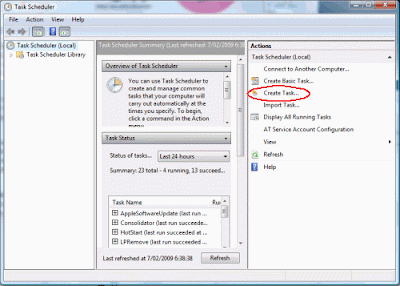
Type "task" in Start Search after clicking the Start menu.

Click "Task Scheduler" from the list that appears. A window opens.

Click Create Task.


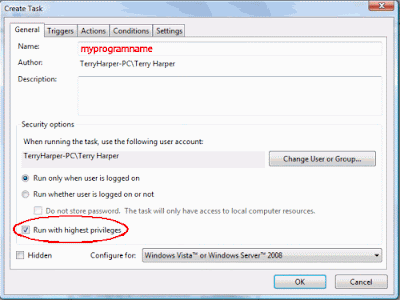
Choose the General Tab.

Enter a word significant to you in the Name square.
Tick Run with highest privileges.


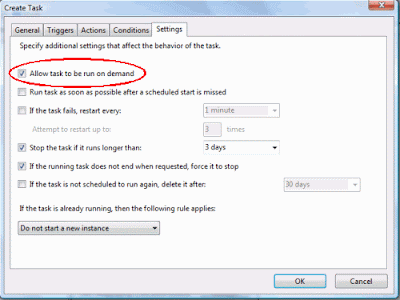
Choose the Settings tab

Tick Allow task to run on demand.

Click OK. Then close window.


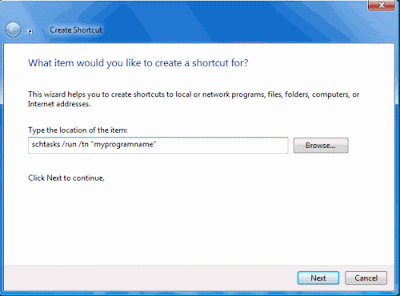
Right click on a blank area of the Desktop. Click New, Shortcut.


In the Shortcut window enter: schtasks /run /tn “myprogramname“
Enter the name of your shortcut. Click Finish


The shortcut is now ready to be placed in a suitable location and used.


Note: When you click the shortcut you will briefly see a small DOS window before the program starts.


METHOD TWO

A much better way to stop the UAC warning window opening is to install the program developed by Norton Labs. It is an excellent program which does the job well.

Click Start Menu, Control Panel then Classic View.

Choose Device Manager.

Display the chip name by expanding the folders, i.e.,

click the computer name folder then Computer folder.

You will see that this computer has an "X86" chip. This is important. Write it down.

Close all the windows.


Open Internet Explorer and type this into the top window of IE:
http://www.nortonlabs.com/inthelab/uac_beta.php

Press Enter.

In the window which opens, enter the name of your country.

Also tick "I certify that this...."


Press Get It! and a new page opens.

Press either Download for x86 or Download for x64 according to the chip in your computer that you wrote down earlier.

With the latest computers you will download the NUACx86.exe file.

Double click this file to install it.

Now, this is the action part.

When you click the shortcut of some programs in the future a new type of UAC window will appear created by Norton. Tick the box next to "Don't ask me again" in this Norton window if you do not want a UAC window to appear again.


You now have what you want - a way to stop UAC warning windows ever opening again!

Installing Adobe Macromedia Shockwave Player to Work for Mozilla Firefox
Installing Adobe Macromedia Shockwave Player to Work for Internet Explorer
Installing MacromediaAdobe FlashMX to Run/Open SWF Files
Installing Macromedia Adobe Flash Player for Internet Explorer
Installing Macromedia Adobe Flash Player for Mozilla Firefox
Installing a Program to Run SWF Files