MAKE YOUR OWN SHORTCUT MANAGER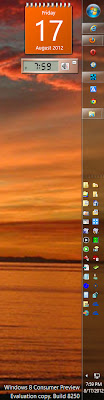
Users can make their own shortcut manager. You just need to make a link in the taskbar to a folder with links in it. Create a folder in the John Smith folder called LINKS. Right click on the Taskbar. Cursor over Toolbars. Then click New Toolbar and browse to the new LINKS folder and choose it.To make individual shortcuts more visible on the taskbar just drag new shortcuts from the Desktop to the now visible LINKS (the area under the three horizontal dashed lines on the Taskbar). 1.
Change the icons to ones you like. Right click on an icon. Click Properties. Click Change Icon. Select a new icon image from the window that opens. Click OK, Apply, then OK.
2.
In the image shown above, the first five icons are folders.
Change folder icons by right clicking one.
Left click Properties.
Choose the Customize tab.
Click the Change Icon button.
Select a new icon image from the window that opens.
Click OK, Apply, then OK. If this doesn't work click on Explorer.
Select the LINKS folder.
Then do the same as in instructions 2 above for the appropriate folder you see there.
Close and open the folder icons in the taskbar a few times then the icons pictures will eventually change. Remember the taskbar is visible all the time, even when you have browsers and writing programs open, so accessing shortcuts on the taskbar is easy.If you want to order the shortcuts in your own way, just rename them with 1- in front of the name, then 2-, 3- and so on. You will find it easier to click and drag the shortcuts to the order you want on the
Taskbar. They will stay where you put them. Shortcuts in folders will have to be renamed with numbers because of Microsoft's silly fixed alphabetical sorting system.
If you want you can create more folders on the
Taskbar in the John Smith/LINKS/ folder.
Use names for the folders that suite you like, Accessories, Files, Creative, Media, Internet and/or Web. Just click a folder icon on the
Taskbar and the folder opens. Drag shortcuts to the open folder, putting them in each folder according to category.
Oh, I find it better to drag the
Taskbar to the right side. This gives you more height to view web pages. Modern screens have too
much width. You can learn which icon represents which program by cursoring over the icons - a box with the program or folder name will appear for each icon.
★