Showing posts with label pc. Show all posts

Tuesday, December 12, 2017

How to Put an Image into a Tweet Using its URL

You used to be able to click "Add more photos" and enter an image url into the Picture folder image address line, then click open to add an image to a tweet.  Twitter has now blocked this.  folder How to image into a tweet using its url How b to b into b a b tweet b using b its b url

There is a way to get over the problem.  Create a shortcut to your Picture folder on the Desktop and drag it onto the Start taskbar.  url
Find an image on a webpage.  Cursor over the pic and drag it onto the shortcut.  


Now upload the picture as you normally would by clicking the add icon at the bottom of your new tweet.  Choose the image which will be on your computer from the Picture folder and click "Open".


This is far quicker that saving it to the Picture folder then uploading.


Friday, August 17, 2012

Make Your Own Shortcut Manager, Making, Icons, Folders, Program, exe files, Software

MAKE YOUR OWN SHORTCUT MANAGER
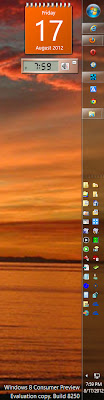

Users can make their own shortcut manager. You just need to make a link in the taskbar to a folder with links in it. Create a folder in the John Smith folder called LINKS. Right click on the Taskbar. Cursor over Toolbars. Then click New Toolbar and browse to the new LINKS folder and choose it.

To make individual shortcuts more visible on the taskbar just drag new shortcuts from the Desktop to the now visible LINKS (the area under the three horizontal dashed lines on the Taskbar).

1.
Change the icons to ones you like.

Right click on an icon.
Click Properties.
Click Change Icon.
Select a new icon image from the window that opens.
Click OK, Apply, then OK.

2.
In the image shown above, the first five icons are folders.
Change folder icons by right clicking one.
Left click Properties.
Choose the Customize tab.
Click the Change Icon button.
Select a new icon image from the window that opens.
Click OK, Apply, then OK.


If this doesn't work click on Explorer.
Select the LINKS folder.
Then do the same as in instructions 2 above for the appropriate folder you see there.
Close and open the folder icons in the taskbar a few times then the icons pictures will eventually change.


Remember the taskbar is visible all the time, even when you have browsers and writing programs open, so accessing shortcuts on the taskbar is easy.

If you want to order the shortcuts in your own way, just rename them with 1- in front of the name, then 2-, 3- and so on. You will find it easier to click and drag the shortcuts to the order you want on the Taskbar. They will stay where you put them. Shortcuts in folders will have to be renamed with numbers because of Microsoft's silly fixed alphabetical sorting system.

If you want you can create more folders on the Taskbar in the John Smith/LINKS/ folder.

Use names for the folders that suite you like, Accessories, Files, Creative, Media, Internet and/or Web. Just click a folder icon on the Taskbar and the folder opens. Drag shortcuts to the open folder, putting them in each folder according to category.

Oh, I find it better to drag the Taskbar to the right side. This gives you more height to view web pages. Modern screens have too much width. You can learn which icon represents which program by cursoring over the icons - a box with the program or folder name will appear for each icon.

Thursday, July 12, 2012

Windows 8 Is A Disaster for Personal Computers

THE END OF THE ROAD FOR EASY WEB DESIGN

Windows 8 means more problems for web page designers. What Internet Explorer reproduces in Windows 8 on a personal computer is not what comes out on a tablet. Internet Explorer 10 is the worst culprit. Having IE10 built into Windows 8 with no possibility of going back to IE9 is definitely a nuisance. Text goes right off the background square. On a PC, fonts are either extended too long and go over the background square at the bottom, or there is a line gap under the full stop because text is too short.

Nearly all the other browsers reproduce correctly, except FireFox with the last word on some fonts extending to the next line. This is rare though. Obviously, the problem lies in the operating system itself which is designed specifically for tablets. Personal computers are only of secondary consideration.


There is a "war" going on in the US at the moment over how images will be shown on tablets and even mobile phones. The powers that be are in a battle with professional code writers over what system will be used. This wonderful image system is called Picture Fill. The font problem with Windows 8 will make the fight more complex.

Designers now have to put images onto a web page knowing that in some circumstances fonts may write over the image or go behind it. Windows 8 is being released far too early. It is not yet known whether the new coding will be in HTML5 or left for HTML6. Whichever way it goes Windows 8 will be obsolete.


The new code for Picture Fill put forward by designers has four images being uploaded to the server at four different pixel densities. This is for each image on the web page. The lowest size and pixel strength will be downloaded by small devices. High definition sites on personal computers will download the highest definition image version. This will definitely make download times longer for all systems, and take up more memory on servers.

Your $40 will be wasted on upgrading to Windows 8. The problems are countless. You cannot set up a network in your home because security turns off and prevents access to Windows Firewall. This blocks all attempts at accessing other devices. Many older versions of software keep shutting down despite compatibility settings. You have to give Microsoft your email address and your correct password as you are logged on at startup. They are surely going to look at your email

Stay with Windows 7. It is the last Windows system written exclusively for PCs.