Showing posts with label download. Show all posts

Tuesday, December 12, 2017

How to Put an Image into a Tweet Using its URL

You used to be able to click "Add more photos" and enter an image url into the Picture folder image address line, then click open to add an image to a tweet.  Twitter has now blocked this.  folder How to image into a tweet using its url How b to b into b a b tweet b using b its b url

There is a way to get over the problem.  Create a shortcut to your Picture folder on the Desktop and drag it onto the Start taskbar.  url
Find an image on a webpage.  Cursor over the pic and drag it onto the shortcut.  


Now upload the picture as you normally would by clicking the add icon at the bottom of your new tweet.  Choose the image which will be on your computer from the Picture folder and click "Open".


This is far quicker that saving it to the Picture folder then uploading.


Sunday, January 1, 2012

Open a Torrent File, Opening, Download, .torrent, Program, How Do I

The file ending in ".torrent" is just the file with the download code in it. There are just words in that file.

1. Download and install µTorrent.

2. Search Google for a torrent. Enter the name of a software program and put the word "torrent" at the end.

3. Download the needed torrent file from a website to your download folder.

4. Open µTorrent with the shortcut on the desktop.

5. Left click "File" in the top left of the program screen. Then left click "Add File".

6. Browse to the torrent file you downloaded. Double click it.

7. A "Save As" window will open with the name of the file without "tpb.torrent" at the end.

8. Click "OK". Click "Active" or "Inactive" to see the real program files download.

9. Put the cursor over the program name at the top. Three of these things could happen:

i) Right click on the name, left click "Open" and a WinRAR or WinZip folder with the needed files will open.
ii) After you left click "Open", a window warning of "unknown file" will open. Click "Yes" then install program.
iii) "Open" is grayed out. Double click the program name and a folder will open with all needed files. Install.

Follow all instructions in "README.txt" files in torrent main folder or subfolder. If you want a full working program that is.

Another option is to use Miro.

1. Download and install Miro.

2. Left click on "Sidebar" in the top left of Miro. Left click "Add Source".

3. Enter "http://thepiratebay.org/rss" or other source.

4. Pirate bay is now in the list on the left. Click Pirate Bay.

5. Enter the name of a needed software program leave out the word "torrent". It is unnecessary.

6. When you get to the list of files, click one. A description page will appear. Click "DOWNLOAD THIS TORRENT".

7. It will download in the background. Look at the list on the left. You will see "Downloading 1".

9. Click
"Downloading 1" and you will see the download fill the screen with its progress. Click "Misc" on left.

10. In the top right you will see two buttons with lines across them. Click the left one.

11. All downloads will be seen. Click "Reveal in Explorer" on a file. A folder opens with all needed files.


Good Luck.

Installing Adobe Macromedia Shockwave Player for Mozilla Firefox
Installing Adobe Macromedia Shockwave Player for Internet Explorer
Installing Macromedia Adobe Flash Player for Internet Explorer
Installing Macromedia Adobe Flash Player for Mozilla Firefox
Installing a Program to Run SWF Files
Disabling UAC for a Program

★

Tuesday, October 27, 2009

Internet Seer is a Fraud Site That Aims To Get Money From You

This is just to let you know about a rogue site. The site is InternetSeer

http://www.internetseer.com/home/index.xtp

Somehow it stops Google from picking up a web page from your site. I don't know how these people do this, but they do. My web page went from number one in Google to disappearing.

I changed the name of the web page and it appeared again in the listings a month later.

An email is sent to you from InternetSeer:

"Second Error Alert Your Web site is still not responding
URL: http://tysaustralia.com/australianhistoriography.html
Time: Fri Oct 23 08:46:25 EDT 2009
Error Type: 500 Internal Server ErrorSupport-FAQWhy is your Web Site not responding? The error listed above could have been caused by any number of events including connectivity problems in the Internet. Please refer to our Error Codes for additional information on the specific error. This error is not necessarily a problem with your hosting service or Web server. Click here to learn more. "

I have checked my web page regularly and I know that it was responding on 10/23/09.

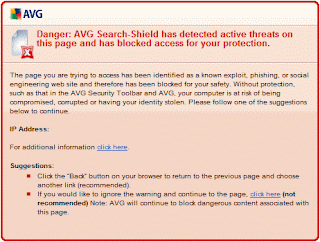
When I click on a link in the email AVG gives the following message:

If my web page was down how did they know it?


. . . . . . . . . . . . .

Tuesday, August 18, 2009

Installing Adobe Macromedia FlashMX to Run/Open SWF Files

Neither Adobe Flash Player nor Adobe Shockwave Player will play SWF files that are in files on your computer. It will be necessary to install a program that will do this. Flash MX is an Adobe program that will do this.

INSTALLING ADOBE FLASH MX

Go to:

http://www.freewebs.com/freemacromediaflashmx/

Choose a link and download "flash_keygen.zip"
You will find the Flash MX exe file and the registration serial in the folder that will be installed when you double click this zip file.
...

Right click on an SWF file in your folder that holds them, such as "Pictures" or "My Pictures".
Go to "Open with".
Left click "Choose Default Program..."
Click on "Browse" ensuring that "Always use the selected program to open this kind of file" box is ticked.
Go to the "Macromedia" folder, then "Flash MX" folder" and click on the "Flash.exe" file.

Your computer is now set to open all SWF files with Macromedia Flash MX.
...

Go to the folder that has your SWF files. Double click an SWF flash picture icon that is in your open window. The file will be opened and played by Flash MX. Click "Use default" in the "missing Font Warning" window if necessary.

or

Open the Macromedia Shockwave Flash MX Program.
Go to "File", "Open", then double-click on an SWF picture file in the folder window that opens. Maybe you will have to browse there. You will see the SWF file in action
.


REMOVING PROTECTION ON SWF FILES
If the SWF is protected (Flash MX will tell you). Download this program:

http://www.dcomsoft.com/download/swf_protect_remover.exe

Then run the program. Select the protected SWF file. Unprotect it and save it as a new file.

Installing Adobe Macromedia Shockwave Player for Mozilla Firefox
Installing Adobe Macromedia Shockwave Player for Internet Explorer
Installing Macromedia Adobe Flash Player for Internet Explorer
Installing Macromedia Adobe Flash Player for Mozilla Firefox
Installing a Program to Run SWF Files
Disabling UAC for a Program

★

Tuesday, May 12, 2009

Installing Macromedia Adobe FlashMX to Run/Open SWF Files

Neither Adobe Flash Player nor Adobe Shockwave Player will play SWF files that are in files on your computer. It will be necessary to install a program that will do this. Flash MX is an Adobe program that will do this.

INSTALLING ADOBE FLASH MX

Go to:

http://www.freewebs.com/freemacromediaflashmx/

Choose a link and download "flash_keygen.zip"
You will find the Flash MX exe file and the registration serial in the folder that will be installed when you double click this zip file.
...

Right click on an SWF file in your folder that holds them, such as "Pictures" or "My Pictures".
Go to "Open with".
Left click "Choose Default Program..."
Click on "Browse" ensuring that "Always use the selected program to open this kind of file" box is ticked.
Go to the "Macromedia" folder, then "Flash MX" folder" and click on the "Flash.exe" file.

Your computer is now set to open all SWF files with Macromedia Flash MX.
...

Go to the folder that has your SWF files. Double click an SWF flash picture icon that is in your open window. The file will be opened and played by Flash MX. Click "Use default" in the "missing Font Warning" window if necessary.

or

Open the Macromedia Shockwave Flash MX Program.
Go to "File", "Open", then double-click on an SWF picture file in the folder window that opens. Maybe you will have to browse there. You will see the SWF file in action
.


REMOVING PROTECTION ON SWF FILES
If the SWF is protected (Flash MX will tell you). Download this program:

http://www.dcomsoft.com/download/swf_protect_remover.exe

Then run the program, select the protected SWF file. Unprotect it and save it as a new file.

Installing Adobe Macromedia Shockwave Player for Mozilla Firefox
Installing Adobe Macromedia Shockwave Player for Internet Explorer
Installing Macromedia Adobe Flash Player for Internet Explorer
Installing Macromedia Adobe Flash Player for Mozilla Firefox
Installing a Program to Run SWF Files
Disabling UAC for a Program

★