Showing posts with label site. Show all posts

Wednesday, February 29, 2012

Internet Explorer Will Not Play Video Despite Being Set as Default Player, IE, WMP

THE INTERNET EXPLORER WINDOWS MEDIA PLAYER VIDEO PROBLEM

You have tried just about everything, checking the blogs and web pages, taking their advice and applying it. Nothing solves your problem: Internet Explorer will not play video. You just get a video console on a website with an error message, or the console remains black and blank.

The problem for IE is that it does not install with all the needed plugins. Yes, some basic ones are there, but basic to IE developers is not what is "required" by users. When you buy a car or receive a free gift, you at least expect it to work properly.

Setting WMP as the default player is not enough to make it work on all web pages.


THE SOLUTION

1) Check if WMP is on the Default Program list.

Click "Start", "Control Panel", "Programs", "Default Programs" and "Set Your Default Programs".

Check if "Windows Media Player" is on the list. If it isn't, go here.

Welcome back if you had this problem.


2) Set WMP as the default player.

Click "Start", "Control Panel", "Programs", "Default Programs" and "Set Your Default Programs".

Choose Windows Media Player from the list. Click "Set this program as default".

You can go further and choose "Set associations for a program" where you can set a player for each file type.


3) Set Computer Defaults.

Click "Start", "Control Panel", "Programs", "Default Programs" and "Set program access and computer defaults".


Click "Custom" and click the expand information arrows on the right.

Cursor down to "Choose a default media player".

Check "Windows Media Player"

Click "OK".

Turn off Internet Explorer and restart.

Go to a website that has video. A warning message will appear across the top of the page in IE asking if you want WMP to play video. Choose "for all sites".


Internet Explorer will play video on any site now.


Wednesday, February 1, 2012

Reciprocal Link Code Often Has Serious Errors That Mess Up Your Site Ranking

You have to be careful when making reciprocal links. Many websites that offer HTML code for you to use don't spend enough time checking their code.

A site as an example is "http://www.traveldirectory.com.au/".

It offers quite pretty little set ups for you to put on your site. The "feature" even has a search function with a text entry window and a go button.

But beware, the code has dozens of HTML code faults, yes dozens.

If you put this HTML in your web page Google and other search engines will give up when it meets the mass of errors, and the text after the code will not be included in the search. This is bad news for you - your website will rate poorly.

Don't just assume that reciprocal link HTML is correct. Download the Firefox HTML Validator plugin and look at the code before you use it.


NON-EXISTENT LINKS


Another thing is non-existent reciprocal links. On many occasions whether you ask for a reciprocal link yourself or another site asks you, after you put their link on your page they don't honor their part of the bargain. They just assume you will not check it. Go to http://www.webconfs.com/reciprocal-link-checker.php and do a check. If they don't put your link on their site remove them from your own website. Furthermore, a link from your homepage is wonderful for the other site, but a link to their link page is useless for you. Nobody clicks on a link to a link sub-page. For a link to count it must be to and from homepages or between internal pages that are rated in their own right by Google. Basically, getting reciprocal links to directories is a waste of time and effort. They have no links on their home page and all outgoing links are on worthless sub-pages.

Tuesday, October 27, 2009

Internet Seer is a Fraud Site That Aims To Get Money From You

This is just to let you know about a rogue site. The site is InternetSeer

http://www.internetseer.com/home/index.xtp

Somehow it stops Google from picking up a web page from your site. I don't know how these people do this, but they do. My web page went from number one in Google to disappearing.

I changed the name of the web page and it appeared again in the listings a month later.

An email is sent to you from InternetSeer:

"Second Error Alert Your Web site is still not responding
URL: http://tysaustralia.com/australianhistoriography.html
Time: Fri Oct 23 08:46:25 EDT 2009
Error Type: 500 Internal Server ErrorSupport-FAQWhy is your Web Site not responding? The error listed above could have been caused by any number of events including connectivity problems in the Internet. Please refer to our Error Codes for additional information on the specific error. This error is not necessarily a problem with your hosting service or Web server. Click here to learn more. "

I have checked my web page regularly and I know that it was responding on 10/23/09.

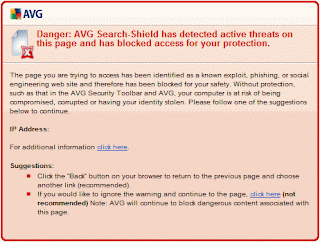
When I click on a link in the email AVG gives the following message:

If my web page was down how did they know it?


. . . . . . . . . . . . .

Friday, September 25, 2009

Give up on RSS Feedreader PHP - It Will Not Work!

Feedreader has been giving out useless PHP "scripts" for months. The conclusion has been reached by all - that it simply does not work!

Rssfeedreader told me to do this,

"Please create a php5.ini file and set allow_url_include,register_globals ON. Currently they are OFF in php configuration. You can create php5.ini by yourself. But the best way is to contact your host support."

My host support refused to do this because of security reasons. I suggest that RSSfeedreader changes the way its system operates. It can do this, or people will ignore their site!

If you really want RSSfeedreader php script to work go here,

How to Make RSSfeedreader PHP "scipt" Work on Your Server


Include PHP works okay. So I would advise people to go to that site. But remember if you use their newer version you can only have 10 PHP "Scripts" before you are shut out. They expect you to pay a yearly fee to have more. You can use their basic version as many times as you like and to be honest, the output is quite good for most websites.

The Include site can be a bit confusing. Their basic PHP scripts are at the bottom of the Home page. You will have to scroll down or you will not see it. Just enter the XML or RSS address of the feed you want on your webpage. Choose the three color options (that is enough) choose the width, usually 900, then click "create HTML".


If you want to use the newer version register an email address with them. Wait, then click on the register url in the email you get. *Go the Include site click the http://www.rssinclude.com/ button. Then on the new page that comes up click "Create A New RSSbox". Another page will appear: click "Create this RSSbox" in the "Simple Vertical List" square.


There is a problem: after you put your rss/xml address in and edit, save, then preview your feed you will be asked to login. When you do you will have to go through all the above again (from*). Then you will get your PHP script.


Save this PHP script in notepad. Then save it as "rssfeedyourfilename.php" into a folder on your computer. Go to that folder and you will see the file as "rssfeedyourfilename.php.txt". Right click on the file. Choose "Rename". Get rid of ".txt".

Save the "rssfeedyourfilename.php" file into the main folder on your website server with an FTP program.

To make it work add this address to the HTML of your webpage where you want the feed to show:

Save your website HTML , for example "index.html", to the main folder on your server with an FTP program.


SETTING UP YOUR COMPUTER FOR PHP

You will have to create a file on your computer. Open notepad and write these two lines on the left side of the page,

"AddHandler server-parsed .htm
AddHandler server-parsed .html"

without the quotation marks.

Save it as ".htaccess" into a folder on your computer. It will save as ".access.txt. Your computer will not allow you to remove the "".txt" because the file begins with a dot.

You have to open your FTP program and load the file into the main directory of your website server. In the right column, "your /public_html/" directory, right click on the ".access.txt" file. Choose "rename" and remove the ".txt.

Your computer is now set to run PHP.


It will work!
Happy Webbing.

http://adventure--australia.blogspot.com/
http://tysaustralia.blogspot.com/
http://feeds.feedburner.com/AdventureAustralia
http://www.technorati.com/blogs/http://adventure--australia.blogspot.com

. . . . . . . . . . . . .