Showing posts with label work. Show all posts

Sunday, October 9, 2016

Canary Browser Has Stopped Working - Will Not Open

Canary browser stops opening try Chrome 64 portable.
Try Chrome 64 Browser

Canary browser can suddenly stop working on some laptops and PCs. There seems to be no fix for this issue. Believe me I have tried everything, old restore points, choosing Windows 8 compatibility, uninstalling/reinstalling both Canary and Chrome - nothing works. Oddly, I have another laptop and PC and Canary browser continues to work on them.
Chrome 64bit portable
Ah well, we will have to move forward. Windows 10 is c..p anyway. Are you aware that Windows 10 has been completely rewritten since the free upgrade. It looks the same but it is as different as IOS. 

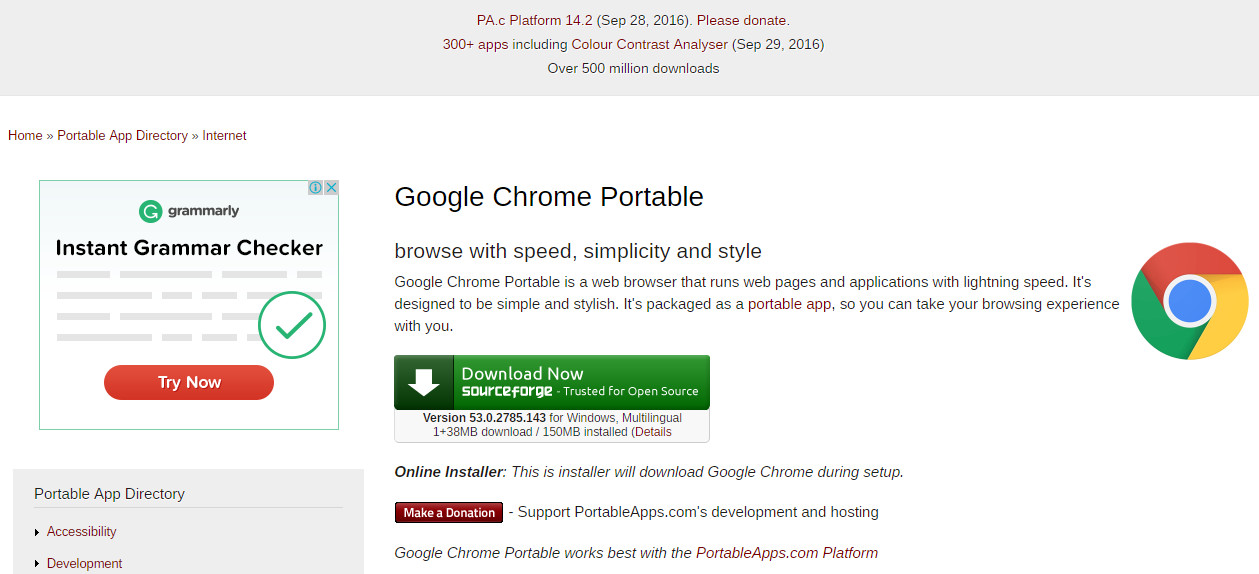
I recommend you download and try Chrome 64 Portable. Yes there is a 64bit version out there.

     The download link is on the Portable Apps webpage.

     The direct download link is here


I hope your computing is bug free.
Good Luck!


Thursday, November 5, 2009

How to Make RSSfeedreader PHP "script" Work on Your Server

Today, I am pleased to announce that the RSSfeedreader website is working again.

This is how you get your site to run PHP files created by RSSfeedreader:


PART ONE

Putting Info into the .htaccess file

Open your FTP program.

go to the main folder "/public_html/"

a) Right click on ".htaccess" and click "edit". The file will open straight away or you may have to click "overwrite" depending on your FTP program.

b) If you don't see an ".htaccess" file, create it by opening notepad.

Now, in both instances a) and b) above you will have notepad open.

Some of you will see

AddHandler server-parsed .htm
AddHandler server-parsed .html"

already there. That is okay.

This is the important part.

Make sure all of the following is in that notepad page:

AddHandler server-parsed .htm
AddHandler server-parsed .html
suPHP_ConfigPath /home/loginname/public_html/

The "loginname" is the name you enter into your FTP program (with a password of course but no password in this instance) to be able to put files onto your server.

Save the notepad page with this name ".htaccess.php"
It will save as "htaccess.php.txt but you will not be able to remove the "''txt" on your computer because the file name begins with a "."

Upload the ".htaccess.php.txt" file to the "/public_html/" directory.
Delete the old ".htaccess,php" if you already have it.
Right click on the ".htaccess.php.txt" file.
Click "rename"
Delete the ".txt" part of the name.
The FTP program may ask if it is alright to change it, but click "OK".


PART TWO

Creating the php.ini file

Open notepad. Write this, or copy it, into the notepad page.

register_globals = On ;
allow_url_include = On ;

Save it as "php.ini"

It will save as "php.ini.txt"

Upload the "php.ini.txt" file to the "/public_html/" directory.
Right click on the "php.ini.txt" file.
Click "rename"
Delete the ".txt" part of the name.
The FTP program may ask if it is alright to change it, but click "OK".

If you already have a "php.ini" Right click on it and put the extra code in it using notepad.
Delete the old ".htaccess,php"
Upload the "php.ini.txt" file to the "/public_html/" directory.
Right click on the "php.ini.txt" file.
Click "rename"
Delete the ".txt" part of the name.
The FTP program may ask if it is alright to change it, but click "OK".


USING THE RSSFEEDREADER WEBSITE

Go to the site. Register your name, email and website address.

Look in your email.

Login in to the RSSfeedreader site.

Enter the URL of your desired news feed after the "http://"

Make sure you put the "www." in, for example http://www.feeds.news.com.au/public/rss/2.0/news_mostpopular_topstories_403.xml

if the "www." address doesn't work try,

http://feeds.news.com.au/public/rss/2.0/news_mostpopular_topstories_403.xml

The feed URLs can be really fussy about the "www." Some need it, some don't.


Enter the information on how you want the feed to look.

For page width enter the width In "Feed Width"

Don't bother about "Choose New Page Options"

Click "get RSS Feed"

Copy the PHP script.

Paste it into a notepad page.


Saving the PHP file

Save it as "rssfeedyourfilename.php" into the "/public_html/" directory with your FTP program.

Right click on the file, choose rename, and remove the ".txt"

Enter the "include virtual" code,

as RSSfeedreader info advises, into your website html code at the position in the page where you want it.

Save the html. Upload it to the "/public_html" directory on your server.

Finished!
. . . . . . . . . . . . .

Friday, September 25, 2009

Give up on RSS Feedreader PHP - It Will Not Work!

Feedreader has been giving out useless PHP "scripts" for months. The conclusion has been reached by all - that it simply does not work!

Rssfeedreader told me to do this,

"Please create a php5.ini file and set allow_url_include,register_globals ON. Currently they are OFF in php configuration. You can create php5.ini by yourself. But the best way is to contact your host support."

My host support refused to do this because of security reasons. I suggest that RSSfeedreader changes the way its system operates. It can do this, or people will ignore their site!

If you really want RSSfeedreader php script to work go here,

How to Make RSSfeedreader PHP "scipt" Work on Your Server


Include PHP works okay. So I would advise people to go to that site. But remember if you use their newer version you can only have 10 PHP "Scripts" before you are shut out. They expect you to pay a yearly fee to have more. You can use their basic version as many times as you like and to be honest, the output is quite good for most websites.

The Include site can be a bit confusing. Their basic PHP scripts are at the bottom of the Home page. You will have to scroll down or you will not see it. Just enter the XML or RSS address of the feed you want on your webpage. Choose the three color options (that is enough) choose the width, usually 900, then click "create HTML".


If you want to use the newer version register an email address with them. Wait, then click on the register url in the email you get. *Go the Include site click the http://www.rssinclude.com/ button. Then on the new page that comes up click "Create A New RSSbox". Another page will appear: click "Create this RSSbox" in the "Simple Vertical List" square.


There is a problem: after you put your rss/xml address in and edit, save, then preview your feed you will be asked to login. When you do you will have to go through all the above again (from*). Then you will get your PHP script.


Save this PHP script in notepad. Then save it as "rssfeedyourfilename.php" into a folder on your computer. Go to that folder and you will see the file as "rssfeedyourfilename.php.txt". Right click on the file. Choose "Rename". Get rid of ".txt".

Save the "rssfeedyourfilename.php" file into the main folder on your website server with an FTP program.

To make it work add this address to the HTML of your webpage where you want the feed to show:

Save your website HTML , for example "index.html", to the main folder on your server with an FTP program.


SETTING UP YOUR COMPUTER FOR PHP

You will have to create a file on your computer. Open notepad and write these two lines on the left side of the page,

"AddHandler server-parsed .htm
AddHandler server-parsed .html"

without the quotation marks.

Save it as ".htaccess" into a folder on your computer. It will save as ".access.txt. Your computer will not allow you to remove the "".txt" because the file begins with a dot.

You have to open your FTP program and load the file into the main directory of your website server. In the right column, "your /public_html/" directory, right click on the ".access.txt" file. Choose "rename" and remove the ".txt.

Your computer is now set to run PHP.


It will work!
Happy Webbing.

http://adventure--australia.blogspot.com/
http://tysaustralia.blogspot.com/
http://feeds.feedburner.com/AdventureAustralia
http://www.technorati.com/blogs/http://adventure--australia.blogspot.com

. . . . . . . . . . . . .

Wednesday, May 13, 2009

Installing Adobe Macromedia Shockwave to Work for Mozilla Firefox

For a clean installation it will be necessary to uninstall the Macromedia Shockwave Player program on your computer, re-install Shockwave Player, install the Shockwave initializing file for Firefox, then check whether shockplayer works.


UNINSTALLING THE EXISTING SHOCKWAVE PLAYER ON YOUR COMPUTER

Close Internet Explorer and all other programs except Audio manager and Color for screen.
Copy this file and run it:

http://tysaustralia.com/Macromedia_Shockwave_Uninstaller.exe

Run a Registry Editor program to remove old registry settings.


Reboot your computer.


INSTALLING MACROMEDIA SHOCKWAVE

Download the file "Shockwave_Installer_Full.exe" by going to this URL:

http://www.download3k.com/DownloadLink1-Macromedia-Shockwave-Player.html

Run and install.


INSTALLING THE SHOCKWAVE "INITIALIZE" FILE FOR FIREFOX

Macromedia Shockwave will work in Mozilla Firefox if you enter this URL:

http://tysaustralia.com/Authorware_Web_Player_Plugin.exe

Then download and install the file.


TEST WHETHER SHOCKWAVE WORKS IN FIREFOX

Do not go to,

http://www.adobe.com/shockwave/welcome/

to test your Macromedia Authorware Web Player installation. This test site does not work properly and will show that shockwave is not working when it could be.

Enter this URL into Internet Explorer:

http://www.adobe.com/products/shockwaveplayer/gokart/

A yellow band may appear at the top of the webpage asking if you want to install Macromedia Authorware Web Player. If this happens, click this band and follow the instructions.When you have completed the Authorware Web Player installation again the game will load to show that Adobe Macromedia Shockwave is working.


You will find Shockwave is already working in Chrome, but not in IE, however.
Go to "Installing Adobe Macromedia Shockwave Player to Work for Internet Explorer"


Installing Adobe Macromedia Shockwave Player to Work for Internet Explorer
Installing Adobe FlashMX to Run/Open SWF Files

Installing Adobe Flash Player to Work for Internet Explorer
Installing Adobe Flash Player to Work for Mozilla Firefox
Installing a Program to Run SWF Files
Disabling UAC for a Program


Installing Adobe Macromedia Shockwave Player to Work for Internet Explorer

For a clean installation it will be necessary to uninstall the Macromedia Shockwave Player program on your computer, remove Internet Explorer 8, re-install Shockwave Player, re-install IE8, then check whether shockplayer works.


UNINSTALLING THE EXISTING SHOCKWAVE PLAYER ON YOUR COMPUTER

Close Internet Explorer and all other programs except Audio manager and Color for screen.

Copy this file and run it:

http://tysaustralia.com/Macromedia_Shockwave_Uninstaller.exe

Run a Registry Editor program to remove old registry settings.

Reboot your computer.


UNINSTALLING INTERNET EXPLORER 8 FOR A CLEAN INSTALL

Go to "Control Panel", "Control Panel Home", "uninstall a Program", "View installed updates" in the Tasks pane, then "Windows Explorer 8". Click "Yes" in the "uninstall Updates" window. If you are using Internet Explorer 7 just go to the Installing Internet Explorer 8 paragraph.


INSTALLING MACROMEDIA SHOCKWAVE

Download the file "Shockwave_Installer_Full.exe" by going to this URL:

http://www.download3k.com/DownloadLink1-Macromedia-Shockwave-Player.html

Run and install.


INSTALLING INTERNET EXPLORER 8

Go to this URL and click "Download":

http://www.microsoft.com/windows/internet-explorer/default.aspx

Follow the instruction to install IE8.


CHECKING WHETHER ADOBE MACROMEDIA SHOCKWAVE WORKS

Do not go to,

http://www.adobe.com/shockwave/welcome/

to test your Macromedia Authorware Web Player installation. This test site does not work properly and will show that shockwave is not working when it could be.


Enter this URL into Internet Explorer:

http://www.adobe.com/products/shockwaveplayer/gokart/

A
yellow band will appear at the top of the webpage asking if you want to install Macromedia Authorware Web Player. Click this band and follow the instructions.

When you have completed the Authorware Web Player installation the game will load to show that Adobe Macromedia Shockwave is working.


Installing Adobe Macromedia Shockwave to Work for Mozilla Firefox
Installing Macromedia Adobe FlashMX to Run/Open SWF Files
Installing Macromedia Adobe Flash Player to Work for Internet Explorer
Installing Macromedia Adobe Flash Player to Work for Mozilla Firefox
Installing a Program to Run SWF Files
Disabling UAC for a Program

Monday, May 11, 2009

Installing Adobe Macromedia Flash Player to Work for Internet Explorer

HOW TO SUCCESSFULLY INSTALL ADOBE FLASH PLAYER SO IT WORKS FOR INTERNET EXPLORER

It will be necessary to reset Internet Explorer, then uninstall, and re-install Adobe Flash Player. All old registry settings must be removed.


RESETTING INTERNET EXPLORER


Go to "Tools" in Internet Explorer. Click "Internet Options". Click the "Advanced" tab"
Click "reset", then "OK".Turn off Internet Explorer
Turn IE on again you will see your toolbars will be disabled. Don't worry; see Re-enable Toolbars, below.

Go to "Tools" Click "Internet Options". Click "Security" tab. Move the security level lever down to medium. Click " Custom Level". Reset to "Medium"; then click "reset"
Find the section "ActiveX controls and plug-ins".
Set "Download Signed ActiveX Controls" to "Prompt".
Set "Run ActiveX Controls And Plug-ins" to "Enable".

Click "OK"; then "Apply"; then "OK".


UNINSTALLING FLASH PLAYER


Download the Flash Player file "uninstall_flash_player.exe" by entering this URL address into IE address line:

http://download.macromedia.com/pub/flashplayer/current/uninstall_flash_player.exe

Save the file to a location of your choosing, probably the "Download" folder.
Close Internet Explorer and all other programs except Audio manager and Color for screen.
Double Click the file to run it. Restart the computer.
When the computer has booted run a Registry Editor program to remove old registry settings.
Restart the computer.


INSTALLING FLASH PLAYER

Download the Flash Player file "Install_Flash_Player_10_ActiveX.zip" by entering this URL address into IE address line:

http://www.adobe.com/support/flashplayer/ts/documents/tn_19166/Install_Flash_Player_10_ActiveX.zip


Save the file to a location of your choosing, probably the "Download" folder.
Close Internet Explorer and all other programs except Audio manager and "color" for screen.
Go to the "Install_Flash_Player_10_ActiveX.zip" file which will be in a subfolder called "Install_Flash_Player_10_ActiveX.zip" in the "Download" folder.
Double click the file "Install_Flash_Player_10_ActiveX.zip" to install.

Restart the computer.

Check the installation by entering "http://dagobah.biz/flash/dancing_cat.swf" into the Internet Explorer address line and press "Enter".

You should see a dancing cat.


PROBLEMS WITH ADOBE FLASH PLAYER

SWF files in folders on your computer cannot be opened with Adobe Flash Player even if you done a clean Adobe Flash install.

If you left click on an SWF file an Adobe update window will appear. follow the instructions and download the latest version of Flash Player. You already have the latest version - Adobe Flash Player version 10.0.22.87.

To use another program to open SWF file go to either of these two articles:

Installing a Program to Run SWF Files
or
Installing Macromedia Adobe FlashMX to Run/Open SWF Files


DIFFERENCES BETWEEN ADOBE SHOCKWAVE PLAYER AND ADOBE FLASH PLAYER

If you install the latest version of Shockwave it will install in the
C:\Windows\System32\Adobe\Shockwave 11\ Folder.

Click "Start", "Control Panel", "Control Panel Home", then "Uninstall a program". You will see that "Adobe Flash Player 10 ActiveX" and Adobe Shockwave Player 11.5 are both installed.

Adobe Shockwave Player is for 3D games and entertainment, interactive product demonstrations, and online learning applications. Having just Adobe Flash installed is sufficient for most computer users. Install Adobe Shockwave Player if you feel you must.

Open Firefox. In Google search, type "animals swf"and Enter. Press Ctrl+Alt+Delete. Click "Start Task Manager". Look down the list of programs that are running. You will see that "FlashUtil10B,exe" is running. Adobe Shockwave player is not running
.


RE-ENABLE TOOLBARS IN IE STOPPED BY THE RESET

Try going to "Tools", "Manage-add-ons" and enablling them again. If this doesn't work do the following:

Click "Start", "Control Panel", "Control Panel Home", then "Uninstall a program". Select toolbars and uninstall each in turn. Note the names of your toolbars.

Enter each name in Google Search and install them again.

That's it. If you choose not to install one or more toolbars they will still appear on the "View", "Toolbars" list but they will be greyed-out - until you reinstall them.


Installing Adobe Macromedia Shockwave Player to Work for Mozilla Firefox
Installing Adobe Macromedia Shockwave Player to Work for Internet Explorer
Installing Adobe Macromedia FlashMX to Run/Open SWF Files
Installing Adobe Macromedia Flash Player for Mozilla Firefox
Installing a Program to Run SWF Files
Disabling UAC for a Program>


Installing Adobe Macromedia Flash Player to Work in Mozilla Firefox

HOW TO SUCCESSFULLY INSTALL ADOBE FLASH PLAYER SO IT WORKS FOR MOZILLA FIREFOX

It will be necessary to uninstall and re-install Adobe Flash Player before setting up the Mozilla Firefox Flash Player plugin. All old registry settings must be removed.


UNINSTALLING FLASH PLAYER
Download the Flash Player file "uninstall_flash_player.exe" by entering this URL address into IE address
line:

http://download.macromedia.com/pub/flashplayer/current/uninstall_flash_player.exe

Save the file to a location of your choosing, probably
the "Download" folder.
Close Mozilla Firefox and all other programs except Audio manager and Color for screen.
Double Click the file to run it. Restart the computer.
When the computer has booted run a Registry Editor program to remove old registry settings.
Restart the computer.


INSTALLING FLASH PLAYER


Download the Flash Player file "Install_Flash_Player_10_ActiveX.zip" by entering this URL address into IE address line:

http://www.adobe.com/support/flashplayer/ts/documents/tn_19166/Install_Flash_Player_10_ActiveX.zip

Save
the file to a location of your choosing, probably the "Download" folder.
Close Mozilla Firefox and all other programs except Audio manager and "color" for screen.
Go to the "Install_Flash_Player_10_ActiveX.zip" file which will be in a subfolder called "Install_Flash_Player_10_ActiveX.zip" in the "Download" folder.
Double click the file "Install_Flash_Player_10_ActiveX.zip" to install.
Restart the computer.


INSTALLING THE MOZILLA FIREFOX ADOBE FLASH PLAYER PLUGIN


Enter this URL into the address line of Firefox:

http://fpdownload.macromedia.com/get/flashplayer/xpi/current/flashplayer-win.xpi

Sa
ve the "flashplayer-win.xpi" file in the "Downloads" folder as "flashplayer-win.zip"

Note the change from ".xpi" to.zip". Unzip the file. Copy both "flashplayer.xpt" and "NPSWF32.dll" files to "C:\Program Files\Mozilla Firefox\plugins\".

Close Firefox and open it again.

Mozilla Firefox will now show flash in websites.


Check the installation by entering "http://dagobah.biz/flash/dancing_cat.swf" into the Firefox address line and press "Enter".

You should see a dancing cat
.


PROBLEMS WITH ADOBE FLASH PLAYER

SWF files in folders on your computer cannot be opened with Adobe Flash Player even if you have done a clean Adobe Flash install.

If you left click on an SWF file an Adobe update window will appear. follow the instructions and download the latest version of Flash Player. You already have the latest version - Adobe Flash Player version 10.0.22.87.

To use another program to open SWF file go to either of these two articles:
or
Installing Macromedia Adobe FlashMX to Run/Open SWF Files


DIFFERENCES BETWEEN ADOBE SHOCKWAVE PLAYER AND ADOBE FLASH PLAYER

If you install the latest version of Shockwave it will install in the
C:\Windows\System32\Adobe\Shockwave 11\ Folder.

Click "Start", "Control Panel", "Control Panel Home", then "Uninstall a program". You will see that "Adobe Flash Player 10 ActiveX" and Adobe Shockwave Player 11.5 are both installed.

Adobe Shockwave Player is for 3D games and entertainment, interactive product demonstrations, and online learning applications. Having just Adobe Flash installed is sufficient for most computer users. Install Adobe Shockwave Player if you feel you must.

Open Firefox. In Google search, type "animals swf"and Enter. Press Ctrl+Alt+Delete. Click "Start Task Manager". Look down the list of programs that are running. You will see that "FlashUtil10B,exe" is running. Adobe Shockwave player is not running.


MAKING SHOCKWAVE WORK WITH FIREFOX


Macromedia Shockwave will work in Mozlla Firefox if you go to this site,

then download and install the file.


TEST WHETHER SHOCKWAVE WORKS IN FIREFOX

Do not go to,


to test your Macromedia Authorware Web Player installation.
This test site does not work properly and will show that shockwave is not working when it could be.
Enter this URL into Internet Explorer:

A yellow band will appear at the top of the webpage asking if you want to install Macromedia Authorware Web Player. Click this band and follow the instructions.When you have completed the Authorware Web Player installation the game will load to show that Adobe Macromedia Shockwave is working.

Installing a Program to Run SWF Files

INSTALLING IRFANVIEW AND THE PROGRAM'S ADOBE FLASH PLAYER PLUGIN


Enter this URL into the address line of Internet Explorer:
http://download.cnet.com/IrfanView/3000-2192-10021962.html?part=dl-IrfanView&subj=dl&tag=button
Click "Download" on the page and install IrfanView.


Enter this URL into the address line of Internet Explorer:
http://www.filecluster.com/download-link-0/79091.html
Click "Run" to install the Plugins.

Enter "cat.swf" into Google search
Curser down to "cat.swf" and right click on it. Choose "Save Target As..."
Save the file in your Picture folder.

Open your Picture folder.
Right click on the file. Choose "Open with", then "Choose default program" (ensuring "always use the selected program to open this kind of file" is ticked).
Select "Browse". Go to "IrfanView" folder in "Program files" folder. Click on the file named "i_view32.exe"


Double click the"cat.swf" picture icon in your "Pictures" folder. You will see the SWF animation.

In future it will just be necessary to double click any SWF picture.

Installing Adobe Macromedia Shockwave Player to Work for Mozilla Firefox
Installing Adobe Macromedia Shockwave Player to Work for Internet Explorer
Installing MacromediaAdobe FlashMX to Run/Open SWF Files
Installing Macromedia Adobe Flash Player for Internet Explorer
Installing Macromedia Adobe Flash Player for Mozilla Firefox
Disabling UAC for a Program


*