Showing posts with label run. Show all posts

Sunday, October 9, 2016

Canary Browser Has Stopped Working - Will Not Open

Canary browser stops opening try Chrome 64 portable.
Try Chrome 64 Browser

Canary browser can suddenly stop working on some laptops and PCs. There seems to be no fix for this issue. Believe me I have tried everything, old restore points, choosing Windows 8 compatibility, uninstalling/reinstalling both Canary and Chrome - nothing works. Oddly, I have another laptop and PC and Canary browser continues to work on them.
Chrome 64bit portable
Ah well, we will have to move forward. Windows 10 is c..p anyway. Are you aware that Windows 10 has been completely rewritten since the free upgrade. It looks the same but it is as different as IOS. 

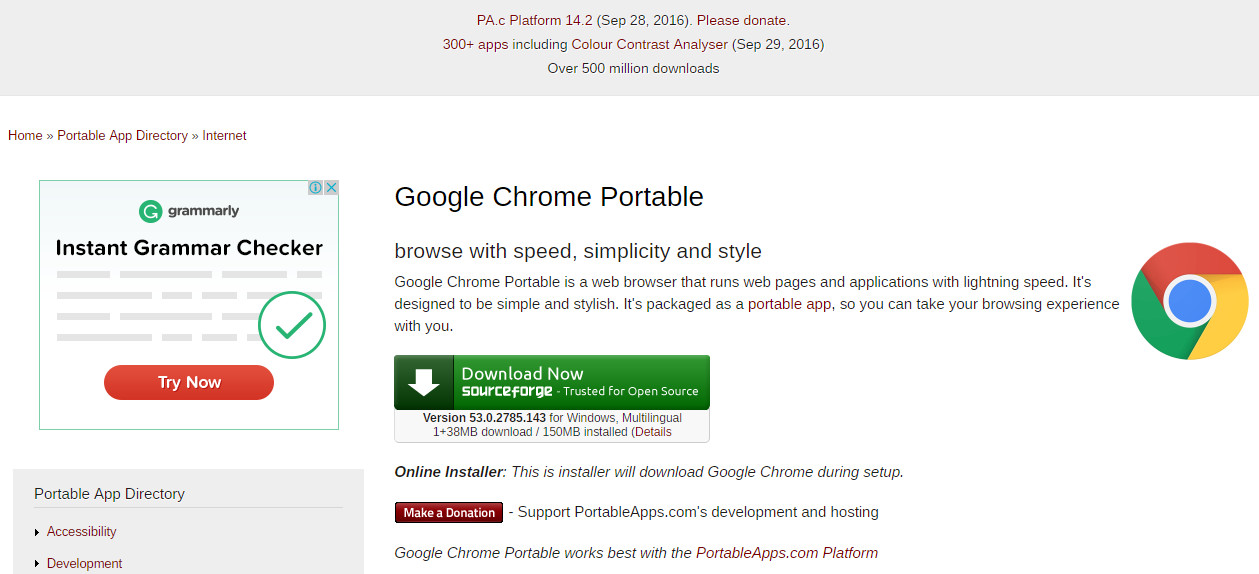
I recommend you download and try Chrome 64 Portable. Yes there is a 64bit version out there.

     The download link is on the Portable Apps webpage.

     The direct download link is here


I hope your computing is bug free.
Good Luck!


Saturday, October 8, 2016

WYSIWYG Webbuilder is Not Compatible With Windows 10

Will not run, will not operate correctly, error, not working
WYSIWYG Webbuilder is not compatible with Windows 10.  It will not operate correctly.  It runs very slowly, does not respond and whites out.  The developers of WB must act soon or they will go out of business.
WYSIWYG Webbuilder 11
If you make a new post in WB community and it contains words such "will not work", "does not operate correctly" and so on it will be removed.  However, you cannot hide or run from the truth.  The software is incompatible.

WYSIWYG Webbuilder it still taking money from people.  They know they are stealing!

The Windows 10 free upgrade was okay.  WB did work with that operating system.  Microsoft has secretly rewritten the whole Windows 10 system.  It looks the same as the free upgrade but underneath, it is absolutely, totally different.

It is possible that WB will be hit with legal action.  If people pay and lock themselves into the WB system they could suffer monetary loss in the near future when they are unable to effectively edit their sites.


Thursday, October 21, 2010

An add-on failed to run

When you see the message "An add-on failed to run on this website" or something similar depending on which version of Internet Explorer you are using go to,

"Tools", "Internet Options", "Security" tab, "Custom level..."

Select "Medium". Click "Reset".

Change the settings to look like this,

Click "OK", then "OK" again.

Close Internet Explorer. Some of the new settings will be reset by IE. Don't worry the ones you need will stay changed.

Restart IE. Enter an About website URL.

This is the main site for the problem.

The site should open without the warning because the Flash on the site should now be working.

Unfortunately, this will not always work for IE8. However, It will always work for IE9 Beta.


Installing Adobe Macromedia Shockwave Player for Mozilla Firefox
Installing Adobe Macromedia Shockwave Player for Internet Explorer
Installing Macromedia Adobe Flash Player for Internet Explorer
Installing Macromedia Adobe Flash Player for Mozilla Firefox
Installing a Program to Run SWF Files
Disabling UAC for a Program

Tuesday, August 18, 2009

Installing Adobe Macromedia FlashMX to Run/Open SWF Files

Neither Adobe Flash Player nor Adobe Shockwave Player will play SWF files that are in files on your computer. It will be necessary to install a program that will do this. Flash MX is an Adobe program that will do this.

INSTALLING ADOBE FLASH MX

Go to:

http://www.freewebs.com/freemacromediaflashmx/

Choose a link and download "flash_keygen.zip"
You will find the Flash MX exe file and the registration serial in the folder that will be installed when you double click this zip file.
...

Right click on an SWF file in your folder that holds them, such as "Pictures" or "My Pictures".
Go to "Open with".
Left click "Choose Default Program..."
Click on "Browse" ensuring that "Always use the selected program to open this kind of file" box is ticked.
Go to the "Macromedia" folder, then "Flash MX" folder" and click on the "Flash.exe" file.

Your computer is now set to open all SWF files with Macromedia Flash MX.
...

Go to the folder that has your SWF files. Double click an SWF flash picture icon that is in your open window. The file will be opened and played by Flash MX. Click "Use default" in the "missing Font Warning" window if necessary.

or

Open the Macromedia Shockwave Flash MX Program.
Go to "File", "Open", then double-click on an SWF picture file in the folder window that opens. Maybe you will have to browse there. You will see the SWF file in action
.


REMOVING PROTECTION ON SWF FILES
If the SWF is protected (Flash MX will tell you). Download this program:

http://www.dcomsoft.com/download/swf_protect_remover.exe

Then run the program. Select the protected SWF file. Unprotect it and save it as a new file.

Installing Adobe Macromedia Shockwave Player for Mozilla Firefox
Installing Adobe Macromedia Shockwave Player for Internet Explorer
Installing Macromedia Adobe Flash Player for Internet Explorer
Installing Macromedia Adobe Flash Player for Mozilla Firefox
Installing a Program to Run SWF Files
Disabling UAC for a Program

Wednesday, May 13, 2009

Installing Adobe Macromedia Shockwave to Work for Mozilla Firefox

For a clean installation it will be necessary to uninstall the Macromedia Shockwave Player program on your computer, re-install Shockwave Player, install the Shockwave initializing file for Firefox, then check whether shockplayer works.


UNINSTALLING THE EXISTING SHOCKWAVE PLAYER ON YOUR COMPUTER

Close Internet Explorer and all other programs except Audio manager and Color for screen.
Copy this file and run it:

http://tysaustralia.com/Macromedia_Shockwave_Uninstaller.exe

Run a Registry Editor program to remove old registry settings.


Reboot your computer.


INSTALLING MACROMEDIA SHOCKWAVE

Download the file "Shockwave_Installer_Full.exe" by going to this URL:

http://www.download3k.com/DownloadLink1-Macromedia-Shockwave-Player.html

Run and install.


INSTALLING THE SHOCKWAVE "INITIALIZE" FILE FOR FIREFOX

Macromedia Shockwave will work in Mozilla Firefox if you enter this URL:

http://tysaustralia.com/Authorware_Web_Player_Plugin.exe

Then download and install the file.


TEST WHETHER SHOCKWAVE WORKS IN FIREFOX

Do not go to,

http://www.adobe.com/shockwave/welcome/

to test your Macromedia Authorware Web Player installation. This test site does not work properly and will show that shockwave is not working when it could be.

Enter this URL into Internet Explorer:

http://www.adobe.com/products/shockwaveplayer/gokart/

A yellow band may appear at the top of the webpage asking if you want to install Macromedia Authorware Web Player. If this happens, click this band and follow the instructions.When you have completed the Authorware Web Player installation again the game will load to show that Adobe Macromedia Shockwave is working.


You will find Shockwave is already working in Chrome, but not in IE, however.
Go to "Installing Adobe Macromedia Shockwave Player to Work for Internet Explorer"


Installing Adobe Macromedia Shockwave Player to Work for Internet Explorer
Installing Adobe FlashMX to Run/Open SWF Files

Installing Adobe Flash Player to Work for Internet Explorer
Installing Adobe Flash Player to Work for Mozilla Firefox
Installing a Program to Run SWF Files
Disabling UAC for a Program


Installing Adobe Macromedia Shockwave Player to Work for Internet Explorer

For a clean installation it will be necessary to uninstall the Macromedia Shockwave Player program on your computer, remove Internet Explorer 8, re-install Shockwave Player, re-install IE8, then check whether shockplayer works.


UNINSTALLING THE EXISTING SHOCKWAVE PLAYER ON YOUR COMPUTER

Close Internet Explorer and all other programs except Audio manager and Color for screen.

Copy this file and run it:

http://tysaustralia.com/Macromedia_Shockwave_Uninstaller.exe

Run a Registry Editor program to remove old registry settings.

Reboot your computer.


UNINSTALLING INTERNET EXPLORER 8 FOR A CLEAN INSTALL

Go to "Control Panel", "Control Panel Home", "uninstall a Program", "View installed updates" in the Tasks pane, then "Windows Explorer 8". Click "Yes" in the "uninstall Updates" window. If you are using Internet Explorer 7 just go to the Installing Internet Explorer 8 paragraph.


INSTALLING MACROMEDIA SHOCKWAVE

Download the file "Shockwave_Installer_Full.exe" by going to this URL:

http://www.download3k.com/DownloadLink1-Macromedia-Shockwave-Player.html

Run and install.


INSTALLING INTERNET EXPLORER 8

Go to this URL and click "Download":

http://www.microsoft.com/windows/internet-explorer/default.aspx

Follow the instruction to install IE8.


CHECKING WHETHER ADOBE MACROMEDIA SHOCKWAVE WORKS

Do not go to,

http://www.adobe.com/shockwave/welcome/

to test your Macromedia Authorware Web Player installation. This test site does not work properly and will show that shockwave is not working when it could be.


Enter this URL into Internet Explorer:

http://www.adobe.com/products/shockwaveplayer/gokart/

A
yellow band will appear at the top of the webpage asking if you want to install Macromedia Authorware Web Player. Click this band and follow the instructions.

When you have completed the Authorware Web Player installation the game will load to show that Adobe Macromedia Shockwave is working.


Installing Adobe Macromedia Shockwave to Work for Mozilla Firefox
Installing Macromedia Adobe FlashMX to Run/Open SWF Files
Installing Macromedia Adobe Flash Player to Work for Internet Explorer
Installing Macromedia Adobe Flash Player to Work for Mozilla Firefox
Installing a Program to Run SWF Files
Disabling UAC for a Program

Tuesday, May 12, 2009

Installing Macromedia Adobe FlashMX to Run/Open SWF Files

Neither Adobe Flash Player nor Adobe Shockwave Player will play SWF files that are in files on your computer. It will be necessary to install a program that will do this. Flash MX is an Adobe program that will do this.

INSTALLING ADOBE FLASH MX

Go to:

http://www.freewebs.com/freemacromediaflashmx/

Choose a link and download "flash_keygen.zip"
You will find the Flash MX exe file and the registration serial in the folder that will be installed when you double click this zip file.
...

Right click on an SWF file in your folder that holds them, such as "Pictures" or "My Pictures".
Go to "Open with".
Left click "Choose Default Program..."
Click on "Browse" ensuring that "Always use the selected program to open this kind of file" box is ticked.
Go to the "Macromedia" folder, then "Flash MX" folder" and click on the "Flash.exe" file.

Your computer is now set to open all SWF files with Macromedia Flash MX.
...

Go to the folder that has your SWF files. Double click an SWF flash picture icon that is in your open window. The file will be opened and played by Flash MX. Click "Use default" in the "missing Font Warning" window if necessary.

or

Open the Macromedia Shockwave Flash MX Program.
Go to "File", "Open", then double-click on an SWF picture file in the folder window that opens. Maybe you will have to browse there. You will see the SWF file in action
.


REMOVING PROTECTION ON SWF FILES
If the SWF is protected (Flash MX will tell you). Download this program:

http://www.dcomsoft.com/download/swf_protect_remover.exe

Then run the program, select the protected SWF file. Unprotect it and save it as a new file.

Installing Adobe Macromedia Shockwave Player for Mozilla Firefox
Installing Adobe Macromedia Shockwave Player for Internet Explorer
Installing Macromedia Adobe Flash Player for Internet Explorer
Installing Macromedia Adobe Flash Player for Mozilla Firefox
Installing a Program to Run SWF Files
Disabling UAC for a Program

Monday, May 11, 2009

Installing a Program to Run SWF Files

INSTALLING IRFANVIEW AND THE PROGRAM'S ADOBE FLASH PLAYER PLUGIN


Enter this URL into the address line of Internet Explorer:
http://download.cnet.com/IrfanView/3000-2192-10021962.html?part=dl-IrfanView&subj=dl&tag=button
Click "Download" on the page and install IrfanView.


Enter this URL into the address line of Internet Explorer:
http://www.filecluster.com/download-link-0/79091.html
Click "Run" to install the Plugins.

Enter "cat.swf" into Google search
Curser down to "cat.swf" and right click on it. Choose "Save Target As..."
Save the file in your Picture folder.

Open your Picture folder.
Right click on the file. Choose "Open with", then "Choose default program" (ensuring "always use the selected program to open this kind of file" is ticked).
Select "Browse". Go to "IrfanView" folder in "Program files" folder. Click on the file named "i_view32.exe"


Double click the"cat.swf" picture icon in your "Pictures" folder. You will see the SWF animation.

In future it will just be necessary to double click any SWF picture.

Installing Adobe Macromedia Shockwave Player to Work for Mozilla Firefox
Installing Adobe Macromedia Shockwave Player to Work for Internet Explorer
Installing MacromediaAdobe FlashMX to Run/Open SWF Files
Installing Macromedia Adobe Flash Player for Internet Explorer
Installing Macromedia Adobe Flash Player for Mozilla Firefox
Disabling UAC for a Program


*