Windows is a successful operating system. Nonetheless, it has its problems. This blogspot attempts to solve some of these issues. Articles are written in plain language, with clear step-by-step instructions and images where necessary.
Saturday, October 8, 2016
WYSIWYG Webbuilder is Not Compatible With Windows 10
Monday, September 26, 2016
Access Denied You don't have permission to access "http://sdlc
When you try to install Java Runtime environment by Oracle you will now be hit with this message:
Access Denied
You don't have permission to access "http://sdlc-esd-stage.oracle.com/ESD6/JSCDL/jdk/8u101-b13/JavaSetup8u101.exe?" on this server.Reference #18.6b7d117.1474816754.d96a7d5
http://www.oracle.com/technetwork/java/javase/downloads/jre8-downloads-2133155.html
Friday, August 17, 2012
Make Your Own Shortcut Manager, Making, Icons, Folders, Program, exe files, Software

To make individual shortcuts more visible on the taskbar just drag new shortcuts from the Desktop to the now visible LINKS (the area under the three horizontal dashed lines on the Taskbar).
1.
Change the icons to ones you like.
Right click on an icon.
Click Properties.
Click Change Icon.
Select a new icon image from the window that opens.
Click OK, Apply, then OK.
2.
In the image shown above, the first five icons are folders.
Change folder icons by right clicking one.
Left click Properties.
Choose the Customize tab.
Click the Change Icon button.
Select a new icon image from the window that opens.
Click OK, Apply, then OK.
Select the LINKS folder.
Remember the taskbar is visible all the time, even when you have browsers and writing programs open, so accessing shortcuts on the taskbar is easy.
If you want to order the shortcuts in your own way, just rename them with 1- in front of the name, then 2-, 3- and so on. You will find it easier to click and drag the shortcuts to the order you want on the Taskbar. They will stay where you put them. Shortcuts in folders will have to be renamed with numbers because of Microsoft's silly fixed alphabetical sorting system.
If you want you can create more folders on the Taskbar in the John Smith/LINKS/ folder.
Use names for the folders that suite you like, Accessories, Files, Creative, Media, Internet and/or Web. Just click a folder icon on the Taskbar and the folder opens. Drag shortcuts to the open folder, putting them in each folder according to category.
Oh, I find it better to drag the Taskbar to the right side. This gives you more height to view web pages. Modern screens have too much width. You can learn which icon represents which program by cursoring over the icons - a box with the program or folder name will appear for each icon.
Thursday, July 12, 2012
Windows 8 Is A Disaster for Personal Computers
Nearly all the other browsers reproduce correctly, except FireFox with the last word on some fonts extending to the next line. This is rare though. Obviously, the problem lies in the operating system itself which is designed specifically for tablets. Personal computers are only of secondary consideration.
There is a "war" going on in the US at the moment over how images will be shown on tablets and even mobile phones. The powers that be are in a battle with professional code writers over what system will be used. This wonderful image system is called Picture Fill. The font problem with Windows 8 will make the fight more complex.
Designers now have to put images onto a web page knowing that in some circumstances fonts may write over the image or go behind it. Windows 8 is being released far too early. It is not yet known whether the new coding will be in HTML5 or left for HTML6. Whichever way it goes Windows 8 will be obsolete.
The new code for Picture Fill put forward by designers has four images being uploaded to the server at four different pixel densities. This is for each image on the web page. The lowest size and pixel strength will be downloaded by small devices. High definition sites on personal computers will download the highest definition image version. This will definitely make download times longer for all systems, and take up more memory on servers.
Your $40 will be wasted on upgrading to Windows 8. The problems are countless. You cannot set up a network in your home because security turns off and prevents access to Windows Firewall. This blocks all attempts at accessing other devices. Many older versions of software keep shutting down despite compatibility settings. You have to give Microsoft your email address and your correct password as you are logged on at startup. They are surely going to look at your email
Stay with Windows 7. It is the last Windows system written exclusively for PCs.
Sunday, November 14, 2010
Installed Quicktime on Firefox but There Is No Sound
Also View This Article:
Mozilla Firefox Will Not Play Web Page Background Music/Sounds, Firefox QuickTime plugin has crashed, WMP Plugin
Tuesday, November 2, 2010
You have unsent messages in your Outbox. Do You want to send now?
"You have unsent messages in your Outbox. Do You want to send now?"
This is due to an email somehow getting stuck in the system. This usually arises from the wrong email address when you last sent a message, or incorrect POP or SMTP when you set up your email program. It could also be from initially misspelling your own email address when setting up, then sending a test emal.
Do this:
Open Windows Live Mail.
At the bottom of the list of folders on the left you will see "Storage folders". Click on this folder.
Delete all of the email in this folder.
The "unsent messages" window will not be seen again when you close Windows Live Mail.
Saturday, February 7, 2009
Disabling UAC for a Program Using Norton Anti-UAC
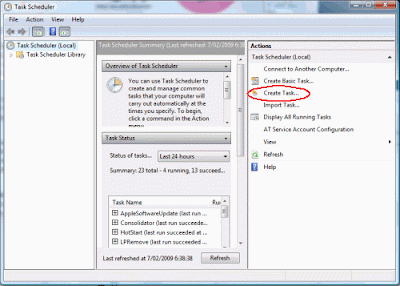
Type "task" in Start Search after clicking the Start menu.
Click "Task Scheduler" from the list that appears. A window opens.
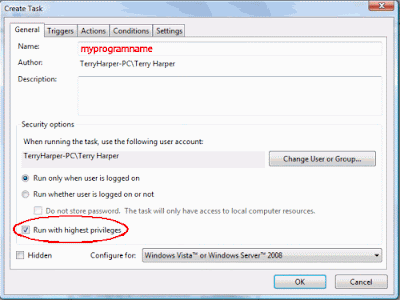
Choose the General Tab.

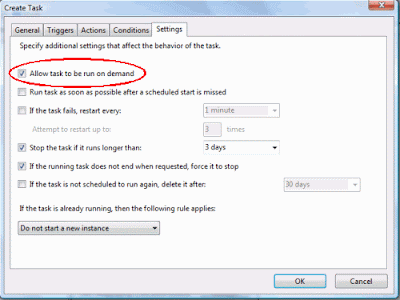
Choose the Settings tab

Right click on a blank area of the Desktop. Click New, Shortcut.
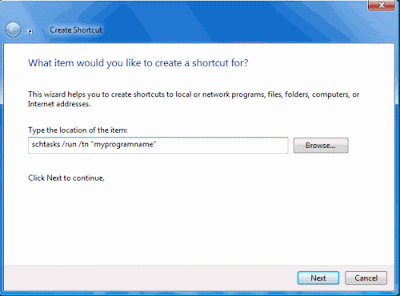
The shortcut is now ready to be placed in a suitable location and used.
Note: When you click the shortcut you will briefly see a small DOS window before the program starts.
METHOD TWO
A much better way to stop the UAC warning window opening is to install the program developed by Norton Labs. It is an excellent program which does the job well.
Click Start Menu, Control Panel then Classic View. 
Choose Device Manager.
Display the chip name by expanding the folders, i.e.,
click the computer name folder then Computer folder.
You will see that this computer has an "X86" chip. This is important. Write it down.
Close all the windows.
Open Internet Explorer and type this into the top window of IE:
http://www.nortonlabs.com/inthelab/uac_beta.php
Press Enter.
In the window which opens, enter the name of your country.
Also tick "I certify that this...."
Press Get It! and a new page opens.
Press either Download for x86 or Download for x64 according to the chip in your computer that you wrote down earlier.
With the latest computers you will download the NUACx86.exe file.
Double click this file to install it.
Now, this is the action part.
When you click the shortcut of some programs in the future a new type of UAC window will appear created by Norton. Tick the box next to "Don't ask me again" in this Norton window if you do not want a UAC window to appear again.
You now have what you want - a way to stop UAC warning windows ever opening again!
Installing Adobe Macromedia Shockwave Player to Work for Mozilla Firefox
Installing Adobe Macromedia Shockwave Player to Work for Internet Explorer
Installing MacromediaAdobe FlashMX to Run/Open SWF Files
Installing Macromedia Adobe Flash Player for Internet Explorer
Installing Macromedia Adobe Flash Player for Mozilla Firefox
Installing a Program to Run SWF Files
★