Showing posts with label start. Show all posts

Wednesday, May 27, 2009

I Get "you do not have administrator privileges" Error When Installing Xplorer2Pro

Xplorer2 Pro will enter "markers" into your registry if you enter the serial incorrectly the first time, then uninstall it and reinstall the program.

From then on if you right click the "xplorer2_UC.exe" file then click on "Run as Administrator' the program will turn itself on and an error window will display saying that you do not have administrator privileges.

If you enter the serial again at this point the program will not accept it.

It is no good contacting the company that sells Xplorer2 Pro. They are only interested in getting your money. They have your money so they will not help you if you enter the serial incorrectly the first time.

The only answer is to go to "Start". Then in the enter box that will appear in the lower left hand corner type in "regedit". Go to "Edit" then "Find" in the registry window. Type in "xplorer2". Click "Find Next", then delete the file or folder at the point where the search stops. Click "Find Next" and delete the files or folder where it stops again. Go on doing this until the end of the registry is reached - about six times. Close the registry window. Reboot.

You may have to install Norton Anti-UAC from this site before you reinstall Xplorer2Pro:

This will make sure you gain access to all files and folders, thus overriding Vista UAC. In future when a Vista warning window appears click the square "do not ask me again" and the computer will never give a warning window again when you open that program.

Now if you reinstall Xplorer2Pro. Go to "xplorer2_UC.exe" file then click on "Run as Administrator' the program will turn itself on and an error window will display saying that you do not have administrator privilege. An "Enter serial number" window will appear. If you enter the serial now the program will register. When you close the program and turn it on again the program will be registered.


THE ETHICS OF THE XPLORER2PRO COMPANY

In my opinion the company has illegally interfered with your computer!
xplorer

Sunday, May 17, 2009

Disabling UAC

THE TWO METHODS OF STOPPING UAC WARNING WINDOWS POPPING UP WHEN YOU START A PROGRAM
Method One by altering computer settings.
Method Two by using the Norton anti-UAC program.

METHOD ONE

There is a way of disabling UAC for a program by "tinkering" with the computer.

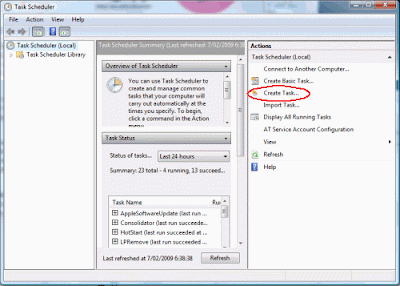
Type "task" in Start Search after clicking the Start menu.

Click "Task Scheduler" from the list that appears. A window opens.

Click Create Task.


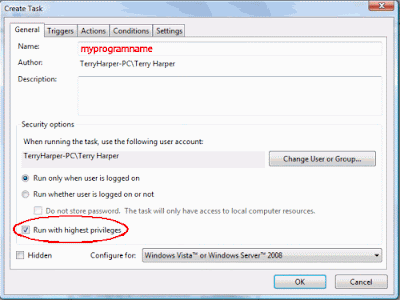
Choose the General Tab.

Enter a word significant to you in the Name square.
Tick Run with highest privileges.


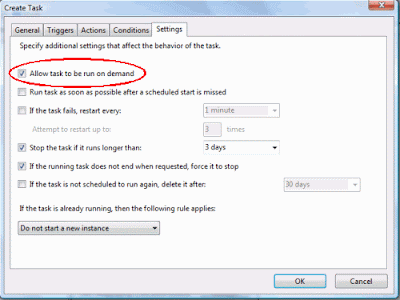
Choose the Settings tab

Tick Allow task to run on demand.

Click OK. Then close window.


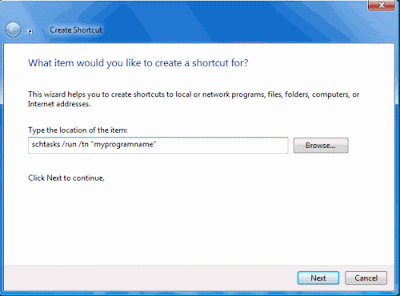
Right click on a blank area of the Desktop. Click New, Shortcut.


In the Shortcut window enter: schtasks /run /tn “myprogramname“
Enter the name of your shortcut. Click Finish


The shortcut is now ready to be placed in a suitable location and used.


Note: When you click the shortcut you will briefly see a small DOS window before the program starts.


METHOD TWO

A much better way to stop the UAC warning window opening is to install the program developed by Norton Labs. It is an excellent program which does the job well.

Click Start Menu, Control Panel then Classic View.

Choose Device Manager.

Display the chip name by expanding the folders, i.e.,

click the computer name folder then Computer folder.

You will see that this computer has an "X86" chip. This is important. Write it down.

Close all the windows.


Open Internet Explorer and type this into the top window of IE:
http://www.nortonlabs.com/inthelab/uac_beta.php

Press Enter.

In the window which opens, enter the name of your country.

Also tick "I certify that this...."


Press Get It! and a new page opens.

Press either Download for x86 or Download for x64 according to the chip in your computer that you wrote down earlier.

With the latest computers you will download the NUACx86.exe file.

Double click this file to install it.

Now, this is the action part.

When you click the shortcut of some programs in the future a new type of UAC window will appear created by Norton. Tick the box next to "Don't ask me again" in this Norton window if you do not want a UAC window to appear again for a program.


You now have what you want - a way to stop UAC warning windows ever opening again!

*

Saturday, February 7, 2009

Disabling UAC for a Program Using Norton Anti-UAC

THE TWO METHODS OF STOPPING UAC WARNING WINDOWS POPPING UP WHEN YOU START A PROGRAM
Method One by altering computer settings.
Method Two by using the Norton anti-UAC program.

METHOD ONE

There is a way of disabling UAC for a program by "tinkering" with the computer.

Type "task" in Start Search after clicking the Start menu.

Click "Task Scheduler" from the list that appears. A window opens.

Click Create Task.


Choose the General Tab.

Enter a word significant to you in the Name square.
Tick Run with highest privileges.


Choose the Settings tab

Tick Allow task to run on demand.

Click OK. Then close window.


Right click on a blank area of the Desktop. Click New, Shortcut.


In the Shortcut window enter: schtasks /run /tn “myprogramname“
Enter the name of your shortcut. Click Finish


The shortcut is now ready to be placed in a suitable location and used.


Note: When you click the shortcut you will briefly see a small DOS window before the program starts.


METHOD TWO

A much better way to stop the UAC warning window opening is to install the program developed by Norton Labs. It is an excellent program which does the job well.

Click Start Menu, Control Panel then Classic View.

Choose Device Manager.

Display the chip name by expanding the folders, i.e.,

click the computer name folder then Computer folder.

You will see that this computer has an "X86" chip. This is important. Write it down.

Close all the windows.


Open Internet Explorer and type this into the top window of IE:
http://www.nortonlabs.com/inthelab/uac_beta.php

Press Enter.

In the window which opens, enter the name of your country.

Also tick "I certify that this...."


Press Get It! and a new page opens.

Press either Download for x86 or Download for x64 according to the chip in your computer that you wrote down earlier.

With the latest computers you will download the NUACx86.exe file.

Double click this file to install it.

Now, this is the action part.

When you click the shortcut of some programs in the future a new type of UAC window will appear created by Norton. Tick the box next to "Don't ask me again" in this Norton window if you do not want a UAC window to appear again.


You now have what you want - a way to stop UAC warning windows ever opening again!

Installing Adobe Macromedia Shockwave Player to Work for Mozilla Firefox
Installing Adobe Macromedia Shockwave Player to Work for Internet Explorer
Installing MacromediaAdobe FlashMX to Run/Open SWF Files
Installing Macromedia Adobe Flash Player for Internet Explorer
Installing Macromedia Adobe Flash Player for Mozilla Firefox
Installing a Program to Run SWF Files