Showing posts with label message. Show all posts

Monday, September 26, 2016

Access Denied You don't have permission to access "http://sdlc

When you try to install Java Runtime environment  by Oracle you will now be hit with this message:

Access Denied

You don't have permission to access "http://sdlc-esd-stage.oracle.com/ESD6/JSCDL/jdk/8u101-b13/JavaSetup8u101.exe?" on this server.

Reference #18.6b7d117.1474816754.d96a7d5


This is not a block done by Windows 10.  Though such behavior is notable by Microsoft like blocking the installation of freeware competitors to 365 Word which should be stopped by national trading authorities.  Microsoft has a popup that says the programs will not run on Windows 10.  However, install a freeware word processor using a PC running windows 7, transfer the program folder over to a Windows 10 laptop, create a shortcut to the "exe" file, and it will run perfectly.


Now let's get back to the current issue.  Because of legal problems Oracle must now get an acceptance of its terms and conditions.  You must got to, 


http://www.oracle.com/technetwork/java/javase/downloads/jre8-downloads-2133155.html


Cursor down to "Java SE Runtime Environment 8u102".  Click the little circle next to "Accept License Agreement" in the 8u102 box and the message will change to,

 "Thank you for accepting the Oracle Binary Code License Agreement for Java SE; you may now download this software."


Cursor Down to "Windows x64 Offline".  Download and install Java.

Have a good day!

Wednesday, February 29, 2012

Internet Explorer Will Not Play Video Despite Being Set as Default Player, IE, WMP

THE INTERNET EXPLORER WINDOWS MEDIA PLAYER VIDEO PROBLEM

You have tried just about everything, checking the blogs and web pages, taking their advice and applying it. Nothing solves your problem: Internet Explorer will not play video. You just get a video console on a website with an error message, or the console remains black and blank.

The problem for IE is that it does not install with all the needed plugins. Yes, some basic ones are there, but basic to IE developers is not what is "required" by users. When you buy a car or receive a free gift, you at least expect it to work properly.

Setting WMP as the default player is not enough to make it work on all web pages.


THE SOLUTION

1) Check if WMP is on the Default Program list.

Click "Start", "Control Panel", "Programs", "Default Programs" and "Set Your Default Programs".

Check if "Windows Media Player" is on the list. If it isn't, go here.

Welcome back if you had this problem.


2) Set WMP as the default player.

Click "Start", "Control Panel", "Programs", "Default Programs" and "Set Your Default Programs".

Choose Windows Media Player from the list. Click "Set this program as default".

You can go further and choose "Set associations for a program" where you can set a player for each file type.


3) Set Computer Defaults.

Click "Start", "Control Panel", "Programs", "Default Programs" and "Set program access and computer defaults".


Click "Custom" and click the expand information arrows on the right.

Cursor down to "Choose a default media player".

Check "Windows Media Player"

Click "OK".

Turn off Internet Explorer and restart.

Go to a website that has video. A warning message will appear across the top of the page in IE asking if you want WMP to play video. Choose "for all sites".


Internet Explorer will play video on any site now.


Tuesday, November 2, 2010

You have unsent messages in your Outbox. Do You want to send now?

After you close Windows Live Mail this message appears:

"You have unsent messages in your Outbox. Do You want to send now?"

This is due to an email somehow getting stuck in the system. This usually arises from the wrong email address when you last sent a message, or incorrect POP or SMTP when you set up your email program. It could also be from initially misspelling your own email address when setting up, then sending a test emal.

Do this:

Open Windows Live Mail.

At the bottom of the list of folders on the left you will see "Storage folders". Click on this folder.

Delete all of the email in this folder.

The "unsent messages" window will not be seen again when you close Windows Live Mail.

Wednesday, October 27, 2010

"Internet Explorer restricted this webpage from running scripts on ActiveX controls" Stop IE warning messages for good in regedit

Are you fed up with warning messages such as,

"Internet Explorer restricted this webpage from running scripts on ActiveX controls"

"An add-on for this website failed to run. Check security settings in Internet options for potential conflicts"


You can turn off these warnings permanently. The security set by Internet Explorer is not replicated in other browsers like Mozilla Firefox and Opera, so why worry about turning it off?


Do this.


STEP 1.

Click "start".

Type "regedit" in "Start Search".
..........

STEP 2.

You will see "Computer" and when you click that you will see a list of folders:

The two important folders are,

HKEY_CURENT_USER and
HKEY_LOCAL_MACHINE

Let's deal with the first folder.

Open each of the following folders to get to the "exe" file by clicking the "" sign on the left of each of them:

HKEY_CURRENT_USER\SOFTWARE\Microsoft\Internet Explorer\Main\FeatureControl\FEATURE_LOCALMACHINE_LOCKDOWN


Click the folder "FEATURE_LOCALMACHINE_LOCKDOWN"
You will see a couple of files on the right.
Right click "iexplorer.exe"
Left click "Modify"
You will see a "1" there. Change it to "0".
..........

STEP 3.

Now let's deal with the second folder.

Open each of the following folders to get to the "exe" files:
HKEY_LOCAL_MACHINE\SOFTWARE\Microsoft\Internet Explorer\Main
\FeatureControl\FEATURE_LOCALMACHINE_LOCKDOWN


Click the folder "FEATURE_LOCALMACHINE_LOCKDOWN"
You will see about 8 files on the right.
Change the following four files from "1" to "0" as you did in STEP 2:
(Right click "wmplayer.exe" for example. Left click "Modify" You will see a "1" there. Change it to "0")
..........

"msimn.exe" may not be there. If it isn't don't worry about it. Just change the other three files. It will work anyway.

Note: You will have to do this again after about 3 months, especially it you use a registry cleaner. Don't use them!


restricted from running regedit

Thursday, October 14, 2010

"Internet Explorer restricted this webpage from running scripts on ActiveX controls" Previewing a website

This is another "bug" that Internet Explorer has that is not a problem for other web browsers.

When you preview a webpage from a website building program you get this message:

"Internet Explorer restricted this webpage from running scripts on ActiveX controls"

Some webbuilding programs, for example WYSIWYG Web Builder, allow you to add "lines" to the HTML of the webpage you have built.

Go to "Page" then "Page HTML"

Choose the "Start of Page" tab.

Type
Click "OK".

It doesn't matter that it is above the command line

When you preview it next time the warning will not happen.

Note: It is safe to have this line in your webpage HTML, so you can happily upload it to your website: it is called the Mark of the Web (MOTW).

Sunday, October 10, 2010

Your security settings do not allow websites to use ActiveX controls installed on your computer

The Internet Explorer (versions 7 and 8) yellow warning line shows up at the top of some websites with this message:

"Your security settings do not allow websites to use ActiveX controls installed on your computer" or

"An add-on for this website failed to run. Check the security settings in Internet..."

They both mean the same thing: Adobe software will not run.


You can pull your hair out with this one. Try going to the "Security" tab and enabling ActiveX settings. Even with the correct settings the same thing happens.

Hold on. There is an answer. Go to "Tools", "Internet Options". Click the "Advanced" tab. Click the "Reset" button. Then click the "Reset" button that comes up in a small window.


This will...

• Disable toolbars and add-ons

• Delete temporary internet files, webpage history, cookies, web forms information and passwords.

• Reset default web browser settings, search providers and home pages.


Don't worry, Restart IE. Go to "Tools", "Manage Add-ons", and "Enable or Disable Add-ons"

Your add-ons are still there. Enable them.

When you go to sites that need a name and password sign in, you will have to re-enter them. You only have to do it once for each site.


Note. It would be advi
sable to uninstall Adobe Shockwave Player and Adobe Flash Player before you reset IE.

Read these two articles,

Installing Adobe Shockwave Player...

Installing Adobe Flash Player....

Be sure you install Adobe Flash Player before you install Adobe Shockwave Player after the reset of IE. This is important.

Sunday, May 17, 2009

Disabling UAC

THE TWO METHODS OF STOPPING UAC WARNING WINDOWS POPPING UP WHEN YOU START A PROGRAM
Method One by altering computer settings.
Method Two by using the Norton anti-UAC program.

METHOD ONE

There is a way of disabling UAC for a program by "tinkering" with the computer.

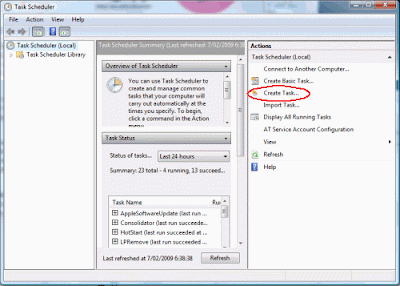
Type "task" in Start Search after clicking the Start menu.

Click "Task Scheduler" from the list that appears. A window opens.

Click Create Task.


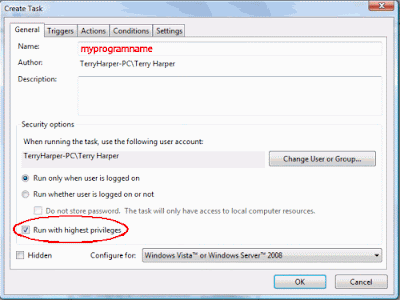
Choose the General Tab.

Enter a word significant to you in the Name square.
Tick Run with highest privileges.


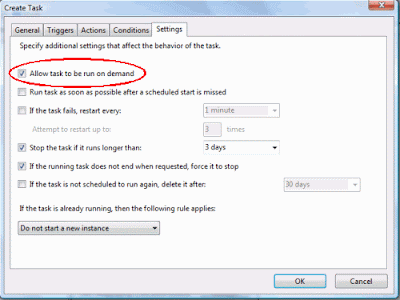
Choose the Settings tab

Tick Allow task to run on demand.

Click OK. Then close window.


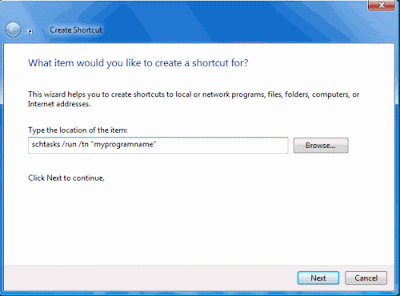
Right click on a blank area of the Desktop. Click New, Shortcut.


In the Shortcut window enter: schtasks /run /tn “myprogramname“
Enter the name of your shortcut. Click Finish


The shortcut is now ready to be placed in a suitable location and used.


Note: When you click the shortcut you will briefly see a small DOS window before the program starts.


METHOD TWO

A much better way to stop the UAC warning window opening is to install the program developed by Norton Labs. It is an excellent program which does the job well.

Click Start Menu, Control Panel then Classic View.

Choose Device Manager.

Display the chip name by expanding the folders, i.e.,

click the computer name folder then Computer folder.

You will see that this computer has an "X86" chip. This is important. Write it down.

Close all the windows.


Open Internet Explorer and type this into the top window of IE:
http://www.nortonlabs.com/inthelab/uac_beta.php

Press Enter.

In the window which opens, enter the name of your country.

Also tick "I certify that this...."


Press Get It! and a new page opens.

Press either Download for x86 or Download for x64 according to the chip in your computer that you wrote down earlier.

With the latest computers you will download the NUACx86.exe file.

Double click this file to install it.

Now, this is the action part.

When you click the shortcut of some programs in the future a new type of UAC window will appear created by Norton. Tick the box next to "Don't ask me again" in this Norton window if you do not want a UAC window to appear again for a program.


You now have what you want - a way to stop UAC warning windows ever opening again!

*