Showing posts with label how. Show all posts

Sunday, January 1, 2012

Open a Torrent File, Opening, Download, .torrent, Program, How Do I

The file ending in ".torrent" is just the file with the download code in it. There are just words in that file.

1. Download and install µTorrent.

2. Search Google for a torrent. Enter the name of a software program and put the word "torrent" at the end.

3. Download the needed torrent file from a website to your download folder.

4. Open µTorrent with the shortcut on the desktop.

5. Left click "File" in the top left of the program screen. Then left click "Add File".

6. Browse to the torrent file you downloaded. Double click it.

7. A "Save As" window will open with the name of the file without "tpb.torrent" at the end.

8. Click "OK". Click "Active" or "Inactive" to see the real program files download.

9. Put the cursor over the program name at the top. Three of these things could happen:

i) Right click on the name, left click "Open" and a WinRAR or WinZip folder with the needed files will open.
ii) After you left click "Open", a window warning of "unknown file" will open. Click "Yes" then install program.
iii) "Open" is grayed out. Double click the program name and a folder will open with all needed files. Install.

Follow all instructions in "README.txt" files in torrent main folder or subfolder. If you want a full working program that is.

Another option is to use Miro.

1. Download and install Miro.

2. Left click on "Sidebar" in the top left of Miro. Left click "Add Source".

3. Enter "http://thepiratebay.org/rss" or other source.

4. Pirate bay is now in the list on the left. Click Pirate Bay.

5. Enter the name of a needed software program leave out the word "torrent". It is unnecessary.

6. When you get to the list of files, click one. A description page will appear. Click "DOWNLOAD THIS TORRENT".

7. It will download in the background. Look at the list on the left. You will see "Downloading 1".

9. Click
"Downloading 1" and you will see the download fill the screen with its progress. Click "Misc" on left.

10. In the top right you will see two buttons with lines across them. Click the left one.

11. All downloads will be seen. Click "Reveal in Explorer" on a file. A folder opens with all needed files.


Good Luck.

Installing Adobe Macromedia Shockwave Player for Mozilla Firefox
Installing Adobe Macromedia Shockwave Player for Internet Explorer
Installing Macromedia Adobe Flash Player for Internet Explorer
Installing Macromedia Adobe Flash Player for Mozilla Firefox
Installing a Program to Run SWF Files
Disabling UAC for a Program

Wednesday, November 24, 2010

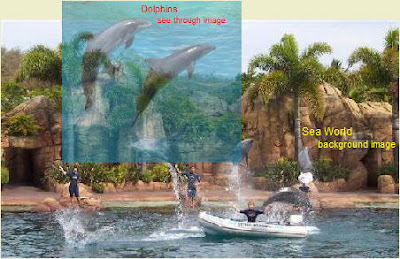
How to Make a Transparent Image, See Through, for a Website with Paint Shop Pro PSP

Make a transparent see through image.
You are frustrated because you want to make a transparent image for a website and a Google search has many suggestion, all escoteric about special html and java. All the while Paint Shop Pro is quite capable of producing a picture that you can see through quite easilly. Make a PNG image.
Save this jpeg picture "dolphins.jpg" to your "Pictures" folder.

Open Paint Shop Pro. Open "dolphins.jpg" in PSP.

Click "Layers", "New Mask Layer", "Show all". A window will appear. Choose "OK". You will see a "Mask" layer and a "Raster" layer appear on the right in the "Layer" window. "Mask - Raster 1" will be highlighted. Leave it. Click "Layers", then "Properties". A window appears with a "Overlay color" on the left and the "Opacity" rate in percent on the right. Changing the color on the left will not make any difference. Changing the opacity will, but leave it at 50%. Click "OK".

Choose the "Flood Fill Tool" in the Toolbox on the left. Place the curser over the picture and click the left mouse button three times. You will see the picture become more transparent with each click.

Sometimes for some unkown reason this multi-click function will not work. There is a way around this. Click "Layers", "Properties" and "General" tab, as above. Then Choose the transparency (Opacity) you want - say 50%. Click "OK". Go ahead and use the "Fill" tool to make the image transparent. Go to the top and click "PNG". "Transparency" tab, then "Alpha channel transparency". Click the "Download Times" tab and you will see a download time of 14 seconds for a dial-up 56k connection. This is quite high, but with PSP you cannot make it any smaller with the transparent properties. Click "OK" and save it as "dolphins2.png"

Open your website writing software program and insert the PNG image into a webpage. Preview it. You will see that the image is transparent.
AN EASY WAY
Now let's do it the easy way. Load the dolphin.jpg image. Double left-click the top color. Select a shade of gray, say R.192, G.192, B.192. Go to "Layers, "New Mask Layer" and click "Show all". Left click the image with the "Fill" tool. Save it as a PNG image with "Alpha channel transparency" ticked. There you are!
Why doesn't PSP tell users that the program will create transparent images? It would certainly help sales if they did. And by the way. Get yourself and older Jasc Paint Shop Pro 8 version. The only bug when running it on Vista and Windows 7 is you have to begin cropping an image from the bottom right to top left. Resize any picture you are working on in this way.
The new PSP software by Corel is rubbish.
I use WYSIWYG Webbuilder. It is an excellent program for building websites and has image transparency built in so you can do it on the fly without having to directly modify the image. Another program that creates see through transparencies is Snagit, but this is complicated to use.

P.S. To make the multi-click function work:

Download the Filters which are a set of 9 bmp images.

Put the images in the "Texture" folder of PSP8.

Before you select "Layers", "New Mask Layer", "Show all" do the following:

Choose a main color like "blue".

Double left click the top color in the "Materials" window.

Tick "textures".

Choose Filter 40.

Then do "Layers", "New Mask Layer", "Show all" and continue.


Friday, April 16, 2010

How to Get Around (bypass) the Australian Internet Filtering System

The Australian Government is about to introduce a filtering system for Internet web sites. Until now I have stayed out of the debate believing it to be good. But the government has overstepped the mark in banning the site set up by Dr Phillip Nitschke. On the site he allows the download of a book on how to end a life in the most "comfortable" manner possible. The majority of people will never need this book. For those who do, however, the information offered is needed and appreciated. They do have the right to access this material.

There is a way to bypass the obstruction set up by the Federal Government. It is quite straightforward. Being an Australia you have the legal right to surf the Internet from an Internet provider based overseas (note, this is also a way to watch television programs,music and video that is available to citizens of that country). The cost is just a few dollars for the Internet Provider based in Ireland that gives access to the BBC and other British programs. At the current exchange rate it is less than $10 a month.

To get this service go to My Private Network. It shows the cost is £5 a month. When you click the "SIGN UP NOW" it shows £10. You should still be able to get the special offer, however. Sign up with a bankcard or debit card.

You will get an email with the link my-private-network get-started. Remember your login name and password because you will have to contact "Support" to get it sent to you again. Go straight to the Get Started link if you have Vista. Enter your details as shown. That's it. You can change from your existing IP to the overseas one by going to the start menu and clicking "Connect To".

When you surf using the overseas IP note that you will be treated as if you are a British national. That means you have access to a lot of useful things.
. . . . . . . . . . . . . . . .

Monday, May 11, 2009

Installing Adobe Macromedia Flash Player to Work for Internet Explorer

HOW TO SUCCESSFULLY INSTALL ADOBE FLASH PLAYER SO IT WORKS FOR INTERNET EXPLORER

It will be necessary to reset Internet Explorer, then uninstall, and re-install Adobe Flash Player. All old registry settings must be removed.


RESETTING INTERNET EXPLORER


Go to "Tools" in Internet Explorer. Click "Internet Options". Click the "Advanced" tab"
Click "reset", then "OK".Turn off Internet Explorer
Turn IE on again you will see your toolbars will be disabled. Don't worry; see Re-enable Toolbars, below.

Go to "Tools" Click "Internet Options". Click "Security" tab. Move the security level lever down to medium. Click " Custom Level". Reset to "Medium"; then click "reset"
Find the section "ActiveX controls and plug-ins".
Set "Download Signed ActiveX Controls" to "Prompt".
Set "Run ActiveX Controls And Plug-ins" to "Enable".

Click "OK"; then "Apply"; then "OK".


UNINSTALLING FLASH PLAYER


Download the Flash Player file "uninstall_flash_player.exe" by entering this URL address into IE address line:

http://download.macromedia.com/pub/flashplayer/current/uninstall_flash_player.exe

Save the file to a location of your choosing, probably the "Download" folder.
Close Internet Explorer and all other programs except Audio manager and Color for screen.
Double Click the file to run it. Restart the computer.
When the computer has booted run a Registry Editor program to remove old registry settings.
Restart the computer.


INSTALLING FLASH PLAYER

Download the Flash Player file "Install_Flash_Player_10_ActiveX.zip" by entering this URL address into IE address line:

http://www.adobe.com/support/flashplayer/ts/documents/tn_19166/Install_Flash_Player_10_ActiveX.zip


Save the file to a location of your choosing, probably the "Download" folder.
Close Internet Explorer and all other programs except Audio manager and "color" for screen.
Go to the "Install_Flash_Player_10_ActiveX.zip" file which will be in a subfolder called "Install_Flash_Player_10_ActiveX.zip" in the "Download" folder.
Double click the file "Install_Flash_Player_10_ActiveX.zip" to install.

Restart the computer.

Check the installation by entering "http://dagobah.biz/flash/dancing_cat.swf" into the Internet Explorer address line and press "Enter".

You should see a dancing cat.


PROBLEMS WITH ADOBE FLASH PLAYER

SWF files in folders on your computer cannot be opened with Adobe Flash Player even if you done a clean Adobe Flash install.

If you left click on an SWF file an Adobe update window will appear. follow the instructions and download the latest version of Flash Player. You already have the latest version - Adobe Flash Player version 10.0.22.87.

To use another program to open SWF file go to either of these two articles:

Installing a Program to Run SWF Files
or
Installing Macromedia Adobe FlashMX to Run/Open SWF Files


DIFFERENCES BETWEEN ADOBE SHOCKWAVE PLAYER AND ADOBE FLASH PLAYER

If you install the latest version of Shockwave it will install in the
C:\Windows\System32\Adobe\Shockwave 11\ Folder.

Click "Start", "Control Panel", "Control Panel Home", then "Uninstall a program". You will see that "Adobe Flash Player 10 ActiveX" and Adobe Shockwave Player 11.5 are both installed.

Adobe Shockwave Player is for 3D games and entertainment, interactive product demonstrations, and online learning applications. Having just Adobe Flash installed is sufficient for most computer users. Install Adobe Shockwave Player if you feel you must.

Open Firefox. In Google search, type "animals swf"and Enter. Press Ctrl+Alt+Delete. Click "Start Task Manager". Look down the list of programs that are running. You will see that "FlashUtil10B,exe" is running. Adobe Shockwave player is not running
.


RE-ENABLE TOOLBARS IN IE STOPPED BY THE RESET

Try going to "Tools", "Manage-add-ons" and enablling them again. If this doesn't work do the following:

Click "Start", "Control Panel", "Control Panel Home", then "Uninstall a program". Select toolbars and uninstall each in turn. Note the names of your toolbars.

Enter each name in Google Search and install them again.

That's it. If you choose not to install one or more toolbars they will still appear on the "View", "Toolbars" list but they will be greyed-out - until you reinstall them.


Installing Adobe Macromedia Shockwave Player to Work for Mozilla Firefox
Installing Adobe Macromedia Shockwave Player to Work for Internet Explorer
Installing Adobe Macromedia FlashMX to Run/Open SWF Files
Installing Adobe Macromedia Flash Player for Mozilla Firefox
Installing a Program to Run SWF Files
Disabling UAC for a Program>


Installing Adobe Macromedia Flash Player to Work in Mozilla Firefox

HOW TO SUCCESSFULLY INSTALL ADOBE FLASH PLAYER SO IT WORKS FOR MOZILLA FIREFOX

It will be necessary to uninstall and re-install Adobe Flash Player before setting up the Mozilla Firefox Flash Player plugin. All old registry settings must be removed.


UNINSTALLING FLASH PLAYER
Download the Flash Player file "uninstall_flash_player.exe" by entering this URL address into IE address
line:

http://download.macromedia.com/pub/flashplayer/current/uninstall_flash_player.exe

Save the file to a location of your choosing, probably
the "Download" folder.
Close Mozilla Firefox and all other programs except Audio manager and Color for screen.
Double Click the file to run it. Restart the computer.
When the computer has booted run a Registry Editor program to remove old registry settings.
Restart the computer.


INSTALLING FLASH PLAYER


Download the Flash Player file "Install_Flash_Player_10_ActiveX.zip" by entering this URL address into IE address line:

http://www.adobe.com/support/flashplayer/ts/documents/tn_19166/Install_Flash_Player_10_ActiveX.zip

Save
the file to a location of your choosing, probably the "Download" folder.
Close Mozilla Firefox and all other programs except Audio manager and "color" for screen.
Go to the "Install_Flash_Player_10_ActiveX.zip" file which will be in a subfolder called "Install_Flash_Player_10_ActiveX.zip" in the "Download" folder.
Double click the file "Install_Flash_Player_10_ActiveX.zip" to install.
Restart the computer.


INSTALLING THE MOZILLA FIREFOX ADOBE FLASH PLAYER PLUGIN


Enter this URL into the address line of Firefox:

http://fpdownload.macromedia.com/get/flashplayer/xpi/current/flashplayer-win.xpi

Sa
ve the "flashplayer-win.xpi" file in the "Downloads" folder as "flashplayer-win.zip"

Note the change from ".xpi" to.zip". Unzip the file. Copy both "flashplayer.xpt" and "NPSWF32.dll" files to "C:\Program Files\Mozilla Firefox\plugins\".

Close Firefox and open it again.

Mozilla Firefox will now show flash in websites.


Check the installation by entering "http://dagobah.biz/flash/dancing_cat.swf" into the Firefox address line and press "Enter".

You should see a dancing cat
.


PROBLEMS WITH ADOBE FLASH PLAYER

SWF files in folders on your computer cannot be opened with Adobe Flash Player even if you have done a clean Adobe Flash install.

If you left click on an SWF file an Adobe update window will appear. follow the instructions and download the latest version of Flash Player. You already have the latest version - Adobe Flash Player version 10.0.22.87.

To use another program to open SWF file go to either of these two articles:
or
Installing Macromedia Adobe FlashMX to Run/Open SWF Files


DIFFERENCES BETWEEN ADOBE SHOCKWAVE PLAYER AND ADOBE FLASH PLAYER

If you install the latest version of Shockwave it will install in the
C:\Windows\System32\Adobe\Shockwave 11\ Folder.

Click "Start", "Control Panel", "Control Panel Home", then "Uninstall a program". You will see that "Adobe Flash Player 10 ActiveX" and Adobe Shockwave Player 11.5 are both installed.

Adobe Shockwave Player is for 3D games and entertainment, interactive product demonstrations, and online learning applications. Having just Adobe Flash installed is sufficient for most computer users. Install Adobe Shockwave Player if you feel you must.

Open Firefox. In Google search, type "animals swf"and Enter. Press Ctrl+Alt+Delete. Click "Start Task Manager". Look down the list of programs that are running. You will see that "FlashUtil10B,exe" is running. Adobe Shockwave player is not running.


MAKING SHOCKWAVE WORK WITH FIREFOX


Macromedia Shockwave will work in Mozlla Firefox if you go to this site,

then download and install the file.


TEST WHETHER SHOCKWAVE WORKS IN FIREFOX

Do not go to,


to test your Macromedia Authorware Web Player installation.
This test site does not work properly and will show that shockwave is not working when it could be.
Enter this URL into Internet Explorer:

A yellow band will appear at the top of the webpage asking if you want to install Macromedia Authorware Web Player. Click this band and follow the instructions.When you have completed the Authorware Web Player installation the game will load to show that Adobe Macromedia Shockwave is working.