Showing posts with label opening. Show all posts

Sunday, October 9, 2016

Canary Browser Has Stopped Working - Will Not Open

Canary browser stops opening try Chrome 64 portable.
Try Chrome 64 Browser

Canary browser can suddenly stop working on some laptops and PCs. There seems to be no fix for this issue. Believe me I have tried everything, old restore points, choosing Windows 8 compatibility, uninstalling/reinstalling both Canary and Chrome - nothing works. Oddly, I have another laptop and PC and Canary browser continues to work on them.
Chrome 64bit portable
Ah well, we will have to move forward. Windows 10 is c..p anyway. Are you aware that Windows 10 has been completely rewritten since the free upgrade. It looks the same but it is as different as IOS. 

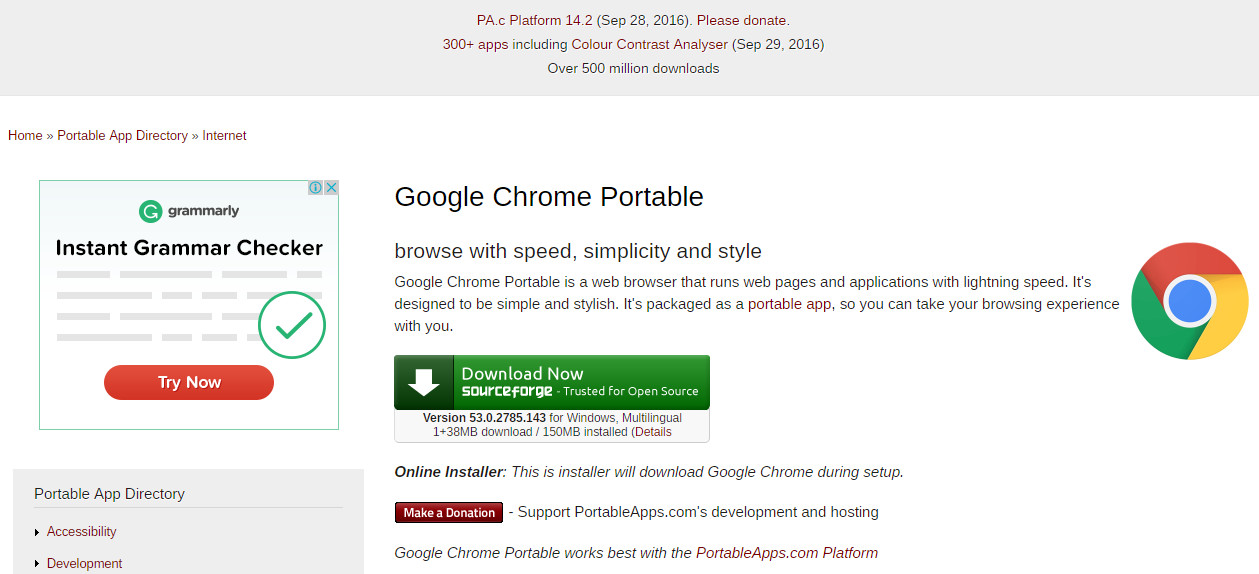
I recommend you download and try Chrome 64 Portable. Yes there is a 64bit version out there.

     The download link is on the Portable Apps webpage.

     The direct download link is here


I hope your computing is bug free.
Good Luck!


Sunday, January 1, 2012

Open a Torrent File, Opening, Download, .torrent, Program, How Do I

The file ending in ".torrent" is just the file with the download code in it. There are just words in that file.

1. Download and install µTorrent.

2. Search Google for a torrent. Enter the name of a software program and put the word "torrent" at the end.

3. Download the needed torrent file from a website to your download folder.

4. Open µTorrent with the shortcut on the desktop.

5. Left click "File" in the top left of the program screen. Then left click "Add File".

6. Browse to the torrent file you downloaded. Double click it.

7. A "Save As" window will open with the name of the file without "tpb.torrent" at the end.

8. Click "OK". Click "Active" or "Inactive" to see the real program files download.

9. Put the cursor over the program name at the top. Three of these things could happen:

i) Right click on the name, left click "Open" and a WinRAR or WinZip folder with the needed files will open.
ii) After you left click "Open", a window warning of "unknown file" will open. Click "Yes" then install program.
iii) "Open" is grayed out. Double click the program name and a folder will open with all needed files. Install.

Follow all instructions in "README.txt" files in torrent main folder or subfolder. If you want a full working program that is.

Another option is to use Miro.

1. Download and install Miro.

2. Left click on "Sidebar" in the top left of Miro. Left click "Add Source".

3. Enter "http://thepiratebay.org/rss" or other source.

4. Pirate bay is now in the list on the left. Click Pirate Bay.

5. Enter the name of a needed software program leave out the word "torrent". It is unnecessary.

6. When you get to the list of files, click one. A description page will appear. Click "DOWNLOAD THIS TORRENT".

7. It will download in the background. Look at the list on the left. You will see "Downloading 1".

9. Click
"Downloading 1" and you will see the download fill the screen with its progress. Click "Misc" on left.

10. In the top right you will see two buttons with lines across them. Click the left one.

11. All downloads will be seen. Click "Reveal in Explorer" on a file. A folder opens with all needed files.


Good Luck.

Installing Adobe Macromedia Shockwave Player for Mozilla Firefox
Installing Adobe Macromedia Shockwave Player for Internet Explorer
Installing Macromedia Adobe Flash Player for Internet Explorer
Installing Macromedia Adobe Flash Player for Mozilla Firefox
Installing a Program to Run SWF Files
Disabling UAC for a Program

★